
A Destination is the storage that your Pipelines load data into, such as a database or a data warehouse. You create it once, and any number of Pipelines can then load data into it.
Every type of Destination requires different configuration details for Hevo to connect to it. A Snowflake Destination requires an account URL and a warehouse, while a Databricks Destination requires a workspace URL and an HTTP path. You send these configuration details as the config object in the request that creates the Destination.
Perform the following steps to create a Destination:
- Find the Destination connector.
- Set up the Destination, specifying the configuration details it requires.
Prerequisites
- An active Hevo account. You can start with a 14-day full-feature, free trial account.
- You are assigned the Team Administrator, Pipeline Administrator, or Team Collaborator role in Hevo.
- You have generated your API credentials. Read Authentication for the steps to generate them.
- You have the connection details for your Destination, such as its host name and a user that Hevo can connect with.
Step 1: Find the Destination Connector
A connector is the integration that Hevo uses to load data into a type of Destination, such as Snowflake or BigQuery. Call the List All Destination Connectors endpoint to see the connectors available to your team. To make an API call, you need to first perform the following steps:
-
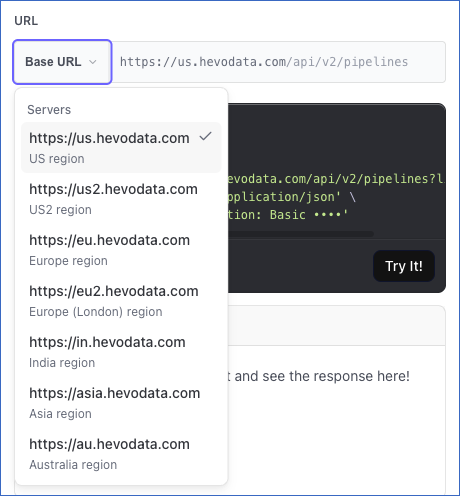
Select your Hevo account region from the Base URL drop-down.
-
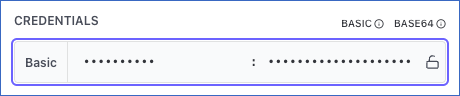
If not already authenticated, enter your Access Key and Secret Key in the CREDENTIALS section. If you do not have these keys, refer to Generating your API Credentials for the steps to generate them.
The endpoint you call, and the response it returns, depend on the API version that you use:
Finding the connector with version 2
Call the List All Destination Connectors endpoint. Each connector in the response includes:
connector_id: The unique identifier of the connector, such assnowflake.type: The type of Destination that the connector creates, such asSNOWFLAKE.display_name: The name Hevo displays, such asSnowflake.
In the response, note the connector_id and the type of the Destination you want to create. The type field is optional for creating a Destination. If you do send it, it must name the same Destination as connector_id. For example, if you send connector_id as snowflake, then type must be SNOWFLAKE. The connector_id value is lower case and is matched exactly. Sending SNOWFLAKE returns a 400 error.
Sending BIGQUERY with a connector_id of snowflake returns a 400 error.
Finding the connector with version 1
Note: Version 1 supports only the Snowflake, BigQuery, and Amazon Redshift Destinations. To create any other Destination, you must use version 2.
Call the List All Destination Connectors endpoint. Version 1 groups the Destination types under the connector that loads into them, so each connector in the response includes:
connector_id: The unique identifier of the connector, such assnowflake.supported_types: The Destination types that the connector loads data into. Each one carries itstype, such asSNOWFLAKE, thenameHevo displays, such asSnowflake, a shortdescriptionof what the Destination is used for, andproduct_documentation, a link to the Hevo documentation for that Destination.
In the response, note the connector_id of the Destination you want to create, and the matching type inside supported_types.
Step 2: Set up the Destination
Once you have identified your connector in the Find the Destination Connector section, you provide the connection details for the Destination, such as its account URL and the user that Hevo connects with. Hevo tests those details before it saves anything, so the Destination is created only if Hevo can access it. If the test fails, nothing is created and the response tells you the reason.
The name of the Destination must start with a letter or a digit, and can contain only letters, digits, spaces, hyphens (-) and underscores (_). A name that another Destination of your team already uses returns a 400 error.
Hevo runs the connection test in the region of the base URL you call, and saves the Destination in that region. A failed test returns a 400 that states the reason your Destination gave. A test that is still running after five minutes returns a 500, and nothing is created.
Some configuration details cannot be changed once the Destination exists, such as the Snowflake account URL and database name. To change such a configuration, you must create a new Destination. Read Modifying the Destination Configuration for the details that you can change.
You can also create a Destination as part of a Pipeline, by sending a destination object instead of a destination_id value to the Create a Pipeline endpoint. That request needs the permission to create a Destination as well as the one to create a Pipeline.
The configuration details differ for every Destination type. Read the respective Destination documentation for the steps to retrieve the values that its config object requires.
The steps to set up the Destination differ based on the API version that you use:
Creating a Destination with version 2
If you want to create a Destination using version 2, perform the following steps:
- Read the connector configuration: Retrieve the configuration details that your Destination accepts.
- Create the Destination: Specify those configuration details in the
configobject of the Create a Destination endpoint.
Step 1: Read the Connector Configuration
Call the Get Configuration Details of a Destination Connector endpoint with the connector_id you retrieved in the Find the Destination Connector section.
Use the response to build your config object. It lists every configuration detail the connector accepts, which of them are mandatory, and the kind of value each one accepts. The following example shows the main parts of the Snowflake response:
{
  "code": "Success",
  "data": {
    "connector_id": "snowflake",
    "type": "SNOWFLAKE",
    "display_name": "Snowflake",
    "schema": {
      "type": "object",
      "required": ["name", "connector_id", "config"],
      "properties": {
        "config": {
          "type": "object",
          "required": ["database_user", "account_url", "warehouse", "database_name"],
          "properties": {
            "account_url": { "type": "string", "title": "Account URL" },
            "warehouse": { "type": "string", "title": "Warehouse" },
            "database_name": { "type": "string", "title": "Database Name" },
            "database_user": { "type": "string", "title": "Database User" },
            "authentication_type": {
              "type": "string",
              "title": "Authentication type",
              "oneOf": [{ "const": "BASIC" }, { "const": "PRIVATE_KEY" }],
              "default": "BASIC"
            },
            "database_password": { "type": "string", "title": "Database Password", "format": "password", "writeOnly": true },
            "private_key": { "type": "string", "title": "Private Key" },
            "private_key_passphrase": { "type": "string", "title": "Passphrase", "format": "password", "writeOnly": true }
          },
          "allOf": [
            {
              "if": { "properties": { "authentication_type": { "const": "BASIC" } }, "required": ["authentication_type"] },
              "then": { "required": ["database_password"] }
            },
            {
              "if": { "properties": { "authentication_type": { "const": "PRIVATE_KEY" } }, "required": ["authentication_type"] },
              "then": { "required": ["private_key"] }
            }
          ]
        }
      }
    }
  }
}
Read the response in the following way to identify the configuration details to send:
| In the response | Meaning | In this example |
|---|---|---|
required inside config | The configuration details you must always send, whichever authentication type you choose. | database_user, account_url, warehouse, and database_name. |
title | The label Hevo displays on screen. | account_url is displayed as Account URL. |
type | The kind of value accepted. | All the values in this example are text. |
oneOf | The values you can choose between. | authentication_type accepts BASIC or PRIVATE_KEY. |
default | The value Hevo applies if you do not send one. | If you do not send authentication_type, Hevo uses BASIC. |
writeOnly with format: password | Marks a credential. Hevo accepts a credential but never returns its value. | database_password is a credential. |
allOf with if and then | The configuration details made mandatory by the authentication type you choose. | Choosing BASIC makes database_password mandatory. |
minimum and maximum | The range a number has to fall in. | A port number has to be between 1 and 65535. |
Amazon Redshift adds an SSH tunnel toggle. When you set ssh_enabled to true, the ssh_host, ssh_user and ssh_port values become mandatory, and Hevo’s SSH public key must be allowed on your bastion host. The connector configuration response does not return that key, so read it from the Hevo UI. The response also does not return the IP addresses that you must allow in your firewall or security group. Obtain these from the Hevo UI before you create the Destination.
Send the key that a condition tests, such as authentication_type, even when you keep its default. Hevo evaluates a condition only against the keys you send, so a credential that the condition would make mandatory is not checked, and the request then fails at the connection test instead of with a clear message.
Reading the Snowflake response above therefore gives you a config object containing the following:
- The four configuration details named by
required. - The authentication type you chose.
- The credential made mandatory by the rule for your authentication type.
The following example shows the resulting config object for basic authentication:
"config": {
  "account_url": "https://xy12345.us-east-1.snowflakecomputing.com",
  "warehouse": "COMPUTE_WH",
  "database_name": "ANALYTICS",
  "database_user": "HEVO",
  "authentication_type": "BASIC",
  "database_password": "<your password>"
}
If you choose PRIVATE_KEY, send private_key in place of database_password, and also send private_key_passphrase if your private key is encrypted.
When you set use_customer_s3_stage to true, Hevo stages the data in your own S3 bucket, and it accesses the bucket through an IAM role in your AWS account. The customer_external_id key is the external ID of that IAM role, which the Hevo UI shows as External ID. This key is optional, and it applies only when you stage data in your own S3 bucket. Read Configure S3 Bucket for Staging Data for the steps to set up the bucket and the IAM role.
Read the configuration details from this response, because they differ for every Destination type and can change when a connector is updated. Refer to Reading the Schema for more information about the keywords a schema uses.
Note: A configuration detail that applies only under a condition must be left out entirely when that condition is not met. Do not send it with an empty value. For example, when authentication_type is BASIC, do not send private_key at all, not even as an empty string.
Before you specify these configuration details, the warehouse, database, and user must already exist in Snowflake, and Hevo must be able to access them. Ensure that all the prerequisites for a Snowflake Destination are met.
Once you have the values for all these configuration details, fill in your config object and copy it. You add this object to the cURL request in the Create the Destination section.
Step 2: Create the Destination
With your config object ready, you send it to the Create a Destination endpoint along with the name and the connector for your Destination. You enter the other fields on the endpoint page, copy the request generated from them, and add your config object to it.
Perform the following steps to create your Destination:
-
Navigate to the Create a Destination endpoint.
-
In the Body Params section, specify the following fields:

name: A unique name for your Destination, not exceeding 255 characters. For example, Analytics Warehouse.connector_id: The unique identifier of the connector that you want to use for this Destination. Specify the value that you retrieved in the Find the Destination Connector section. For example, snowflake.- (Optional)
type: The type of the Destination. If you send this value, it must identify the same connector as theconnector_idvalue. For example, SNOWFLAKE.
-
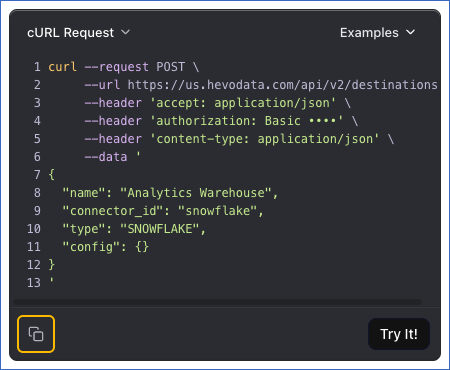
Click the Copy icon below the cURL Request block to copy the request.
-
In the copied request, add the
configobject that you built in the Read the Connector Configuration section. Your request is then complete, and you can send it from your own client, such as Postman, or by running the command in a terminal.
Once the Destination is created, you will get a response code 200 with the details of your Destination, including the id that you use when you create a Pipeline that loads into it.
The following example creates a Snowflake Destination with access credentials:
curl --request POST \
  --url https://us.hevodata.com/api/v2/destinations \
  --header 'accept: application/json' \
  --header 'content-type: application/json' \
  --user '<ACCESS_KEY>:<SECRET_KEY>' \
  --data '{
  "name": "Analytics Warehouse",
  "connector_id": "snowflake",
  "type": "SNOWFLAKE",
  "config": {
    "account_url": "https://xy12345.us-east-1.snowflakecomputing.com",
    "warehouse": "COMPUTE_WH",
    "database_name": "ANALYTICS",
    "database_user": "HEVO",
    "authentication_type": "BASIC",
    "database_password": "<your password>"
  }
}'
The following example creates the same Destination with a key pair:
curl --request POST \
  --url https://us.hevodata.com/api/v2/destinations \
  --header 'accept: application/json' \
  --header 'content-type: application/json' \
  --user '<ACCESS_KEY>:<SECRET_KEY>' \
  --data '{
  "name": "Analytics Warehouse",
  "connector_id": "snowflake",
  "type": "SNOWFLAKE",
  "config": {
    "account_url": "https://xy12345.us-east-1.snowflakecomputing.com",
    "warehouse": "COMPUTE_WH",
    "database_name": "ANALYTICS",
    "database_user": "HEVO",
    "authentication_type": "PRIVATE_KEY",
    "private_key": "-----BEGIN ENCRYPTED PRIVATE KEY-----\n<your private key>\n-----END ENCRYPTED PRIVATE KEY-----\n",
    "private_key_passphrase": "<your passphrase>"
  }
}'Note: A credential such as database_password is masked in every response. The key is still returned inside config, with its value replaced by asterisks, so you cannot read a credential back. Keep your own copy of it.
Creating a Destination with version 1
Version 1 lists the configuration details that each connector accepts on the Create a Destination endpoint itself. You select your connector, enter the values, and send the request.
Before you specify these configuration details, the warehouse, database, and user must already exist in Snowflake, and Hevo must be able to access them. Ensure that all the prerequisites for a Snowflake Destination are met.
Perform the following steps to create your Destination:
-
Navigate to the Create a Destination endpoint.
-
In the Body Params section, specify a unique name for your Destination in the
nameparameter, not exceeding 255 characters. For example, My Destination. -
Select the type of Destination you want to create from the
connector_iddrop-down. For example, here, we are selecting snowflake.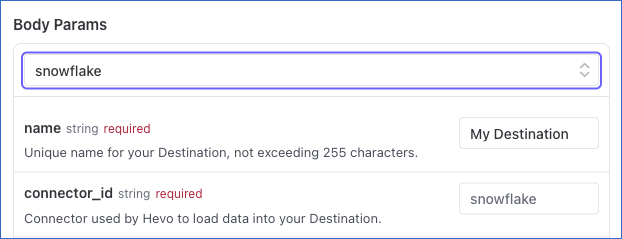
-
From the
authentication_typedrop-down in theconfigobject, select one of the following authentication methods to connect to your Destination:
- BASIC: Select this option to create your Destination using access credentials.
- PRIVATE_KEY: Select this option to create your Destination using a private and public key pair.
-
Specify the following fields:
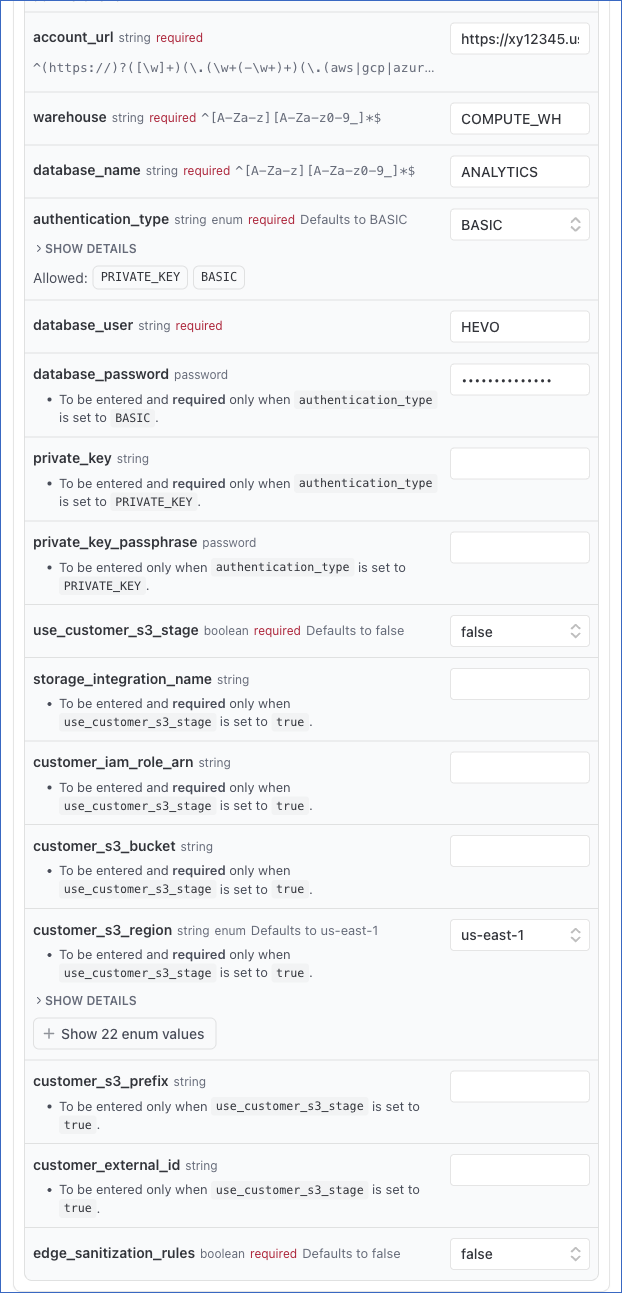
account_url: Your Snowflake account URL. Read Obtain your Snowflake Account URL for the steps to find it.warehouse: The name of the warehouse associated with your database.database_name: The name of the database where the data is to be loaded.database_user: The user name of your Snowflake account.edge_sanitization_rules: Select true to wrap table and column names in double quotes and preserve case sensitivity and special characters. Otherwise, select false.use_customer_s3_stage: Select true to stage the data in your own S3 bucket before it is loaded. Otherwise, select false. Read Configure S3 Bucket for Staging Data for the settings this option requires.
-
Based on the authentication type that you selected, do one of the following:
- If the
authentication_typeis BASIC, specifydatabase_password, the password for your Snowflake account. Read Create a Snowflake User and Grant Permissions for more information. - If the
authentication_typeis PRIVATE_KEY, specifyprivate_key, the private key associated with the public key assigned to the Snowflake user. Include the entire private key text, and ensure that the text between -----BEGIN ENCRYPTED PRIVATE KEY----- and -----END ENCRYPTED PRIVATE KEY----- does not contain any line breaks. Specifyprivate_key_passphraseas the password given while generating the encrypted private key, and leave it blank if your private key is not encrypted. Read Obtain a Private and Public Key Pair for more information.
- If the
-
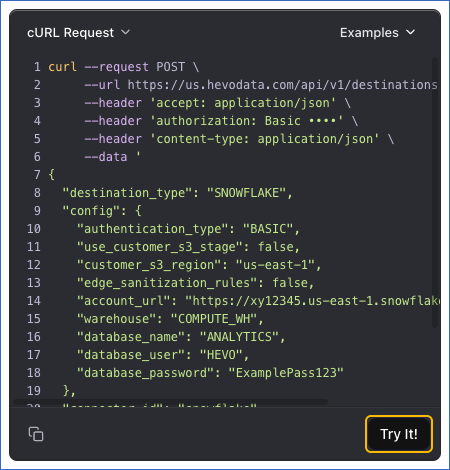
The API request is simultaneously generated in the cURL Request block to the right. Click Try It! to make the API request and create your Destination.
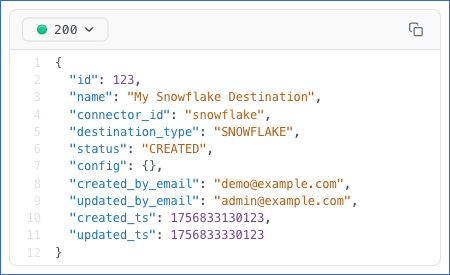
Once the Destination is created, you will get a response code 200 in the response block with the details of your Destination.
The following example creates a Snowflake Destination with access credentials:
curl --request POST \
  --url https://us.hevodata.com/api/v1/destinations \
  --header 'accept: application/json' \
  --header 'content-type: application/json' \
  --user '<ACCESS_KEY>:<SECRET_KEY>' \
  --data '{
  "name": "Analytics Warehouse",
  "connector_id": "snowflake",
  "type": "SNOWFLAKE",
  "config": {
    "account_url": "https://xy12345.us-east-1.snowflakecomputing.com",
    "warehouse": "COMPUTE_WH",
    "database_name": "ANALYTICS",
    "database_user": "HEVO",
    "edge_sanitization_rules": false,
    "use_customer_s3_stage": false,
    "authentication_type": "BASIC",
    "database_password": "<your password>"
  }
}'
The following example creates the same Destination with a key pair:
curl --request POST \
  --url https://us.hevodata.com/api/v1/destinations \
  --header 'accept: application/json' \
  --header 'content-type: application/json' \
  --user '<ACCESS_KEY>:<SECRET_KEY>' \
  --data '{
  "name": "Analytics Warehouse",
  "connector_id": "snowflake",
  "type": "SNOWFLAKE",
  "config": {
    "account_url": "https://xy12345.us-east-1.snowflakecomputing.com",
    "warehouse": "COMPUTE_WH",
    "database_name": "ANALYTICS",
    "database_user": "HEVO",
    "edge_sanitization_rules": false,
    "use_customer_s3_stage": false,
    "authentication_type": "PRIVATE_KEY",
    "private_key": "-----BEGIN ENCRYPTED PRIVATE KEY-----\n<your private key>\n-----END ENCRYPTED PRIVATE KEY-----\n",
    "private_key_passphrase": "<your passphrase>"
  }
}'
After the Destination is created, you can create the Pipelines that load data into it. Read Creating a Pipeline with Hevo API for the steps to create a Pipeline that loads data into this Destination.