
Once you create a Destination, you can change its configuration details without recreating it or the Pipelines that load data into it.
Following are the scenarios in which you may want to modify a Destination:
- The password or key that Hevo connects with has changed.
- You want to change the warehouse that Hevo loads data through, or the user it connects with.
- You want to rename the Destination so that it is easier to identify.
You must consider the following before you modify a Destination:
-
You cannot change the connector that a Destination uses. To load data into a different type of Destination, create a new one. Read Creating Destinations with Hevo API for the steps.
-
Hevo tests the connection only when the request changes the configuration details. The test uses the updated configuration details, and Hevo saves your changes only if the test succeeds. A request that changes only the name is checked for the name rules and saved without a connection test. A test that is still running after five minutes returns a 500 error.
Some configuration details cannot be changed after the Destination is created. For example, you cannot change the following details of a Snowflake Destination:
account_urldatabase_nameuse_customer_s3_stageedge_sanitization_rules
The connector schema does not indicate which details cannot be changed. If the request sends any of these details, even with the value that the Destination already has, it returns a 400 error.
Refer to the Modifying Destination Configuration section in the respective Destination documentation for the configuration details that you can change.
To use a different value, create a new Destination. The Snowflake details you can change are the warehouse, the authentication type, the database user, the password, the private key and its passphrase, and the customer S3 staging settings.
-
A change applies to every Pipeline that loads data into the Destination.
-
A Destination that is being deleted cannot be modified. A request to modify it returns a 404 error.
-
Send only the values that you want to change. Hevo keeps the current value of every field, and every
configkey, that you do not send. A request that does not sendnameor a non-emptyconfigreturns a 400 error.Hevo does not compare your values with the stored ones, so sending the name the Destination already has is accepted, and a
configthat changes nothing is still connection-tested.
Prerequisites
- An active Hevo account. You can start with a 14-day full-feature, free trial account.
- You are assigned the Team Administrator, Pipeline Administrator, Team Collaborator, or Pipeline Collaborator role in Hevo to edit the Destination.
- You have generated your API credentials. Read Authentication for the steps to generate them.
Modifying a Destination
To modify a Destination, you send its destination_id in the path and the configuration details you want to change in the request body. You can find the destination_id by calling the List All Destinations endpoint. To make an API call, you need to first perform the following steps:
-
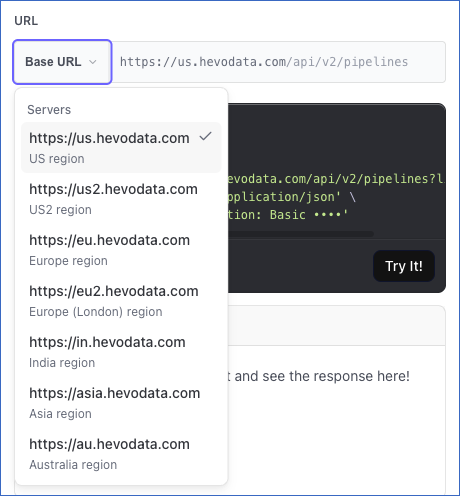
Select your Hevo account region from the Base URL drop-down.
-
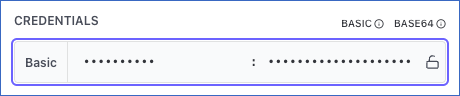
If not already authenticated, enter your Access Key and Secret Key in the CREDENTIALS section. If you do not have these keys, refer to Generating your API Credentials for the steps to generate them.
The steps to modify a Destination differ based on the API version that you use:
Modifying a Destination with version 2
If you want to modify a Destination using version 2, perform the following steps:
- Read the connector configuration: Retrieve the configuration details that your Destination accepts.
- Send the change: Specify the configuration details you want to change in the
configobject of the Modify Destination Configuration endpoint.
Step 1: Read the Connector Configuration
Version 2 does not list the configuration details on the endpoint, so you read them from the connector before you send the request. The configuration details differ for every Destination type.
Perform the following steps to build your config object:
- Call the Get Details of a Destination endpoint to retrieve the
connector_idof your Destination, along with the configuration details it currently uses. - Call the Get Configuration Details of a Destination Connector endpoint with that
connector_idto see every configuration detail the connector accepts, along with which ones are mandatory. - Read the respective Destination documentation for the steps to retrieve the values that its
configobject requires.
Refer to Read the Connector Configuration for the steps to read the response and build a config object from it.
Step 2: Send the Change
You enter the Destination identifier and the name on the endpoint page, copy the request generated from them, and add the config keys you want to change.
Perform the following steps to modify your Destination:
-
Navigate to the Modify Destination Configuration (PATCH) endpoint.
-
In the Path Params section, specify the
destination_id. This is the unique identifier of the Destination you want to modify.
-
(Optional) In the Body Params section, you can specify a new
namefor your Destination.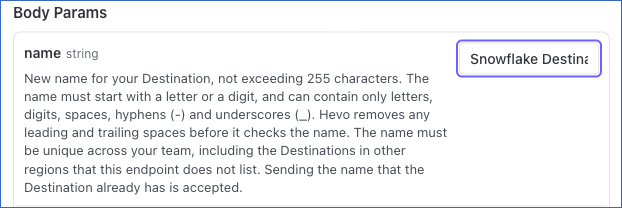
-
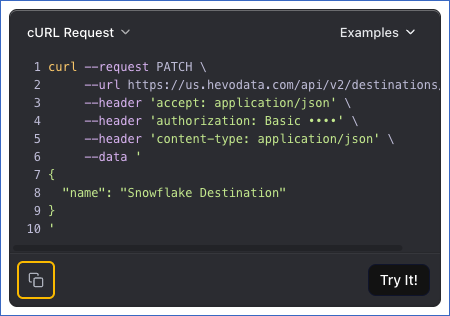
Click the Copy icon below the cURL Request block to copy the request.
-
In the copied request, add a
configobject containing the keys you want to change. Your request is then complete, and you can send it from your own client, such as Postman, or by running the command in a terminal.
Once the Destination configuration is modified, you will receive a response code 200 with the updated details of your Destination.
A common reason to modify a Destination is that the password or key that Hevo connects with has changed. Send authentication_type along with the new credential, so that Hevo knows which credential you are replacing. The following example changes the password of a Snowflake Destination created with access credentials:
curl --request PATCH \
  --url https://us.hevodata.com/api/v2/destinations/46 \
  --header 'accept: application/json' \
  --header 'content-type: application/json' \
  --user '<ACCESS_KEY>:<SECRET_KEY>' \
  --data '{
  "config": {
    "authentication_type": "BASIC",
    "database_password": "<your new password>"
  }
}'
The following example changes the private key of a Snowflake Destination created with a key pair:
curl --request PATCH \
  --url https://us.hevodata.com/api/v2/destinations/46 \
  --header 'accept: application/json' \
  --header 'content-type: application/json' \
  --user '<ACCESS_KEY>:<SECRET_KEY>' \
  --data '{
  "config": {
    "authentication_type": "PRIVATE_KEY",
    "private_key": "-----BEGIN ENCRYPTED PRIVATE KEY-----\n<your new private key>\n-----END ENCRYPTED PRIVATE KEY-----\n",
    "private_key_passphrase": "<your new passphrase>"
  }
}'Note: If your client or proxy cannot send a PATCH request, send the same request body as a POST request to the Modify Destination Configuration (POST) endpoint.
Modifying a Destination with version 1
Version 1 lists the configuration details for each connector on the endpoint, so you select your Destination type and change the values on the endpoint page.
Perform the following steps to modify your Destination:
-
Navigate to the Modify Destination Configuration endpoint.
-
In the Path Params section, specify the
destination_id. This is the unique identifier of the Destination you want to modify.
-
In the Body Params section, select your Destination type from the drop-down. For example, here, we are selecting snowflake.

-
(Optional) In the
nameparameter, you can specify a new name for your Destination. -
From the
authentication_typedrop-down in theconfigobject, select the authentication type of your Destination:
- BASIC: Select this option if your Destination was created using access credentials.
- PRIVATE_KEY: Select this option if your Destination was created using a private and public key pair.
-
Based on the authentication type that you selected, do one of the following:

- If the
authentication_typeis BASIC, specifydatabase_password, the new password for your Snowflake account. - If the
authentication_typeis PRIVATE_KEY, specifyprivate_key, the new private key associated with the public key assigned to the Snowflake user. Include the entire private key text, and ensure that the text between -----BEGIN ENCRYPTED PRIVATE KEY----- and -----END ENCRYPTED PRIVATE KEY----- does not contain any line breaks. Specifyprivate_key_passphraseas the password given while generating the new encrypted private key, and leave it blank if your private key is not encrypted.
- If the
-
Specify the new values for the configuration details you want to update. The API request is simultaneously generated in the cURL Request block to the right.
-
Click Try It! to make the API request and modify your Destination.
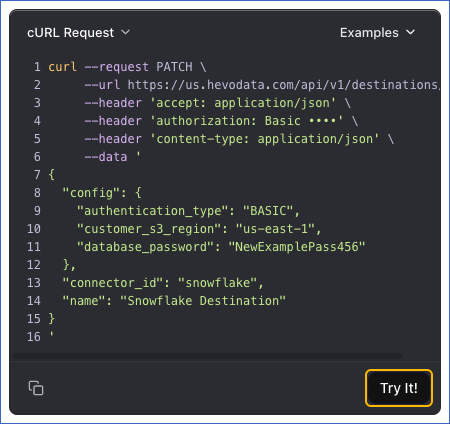
Once the Destination configuration is successfully modified, you will receive a response code 200 in the response block with the updated details of your Destination.
The following example changes the password of a Snowflake Destination created with access credentials:
curl --request PATCH \
  --url https://us.hevodata.com/api/v1/destinations/46 \
  --header 'accept: application/json' \
  --header 'content-type: application/json' \
  --user '<ACCESS_KEY>:<SECRET_KEY>' \
  --data '{
  "connector_id": "snowflake",
  "config": {
    "authentication_type": "BASIC",
    "database_password": "<your new password>"
  }
}'
The following example changes the private key of a Snowflake Destination created with a key pair:
curl --request PATCH \
  --url https://us.hevodata.com/api/v1/destinations/46 \
  --header 'accept: application/json' \
  --header 'content-type: application/json' \
  --user '<ACCESS_KEY>:<SECRET_KEY>' \
  --data '{
  "connector_id": "snowflake",
  "config": {
    "authentication_type": "PRIVATE_KEY",
    "private_key": "-----BEGIN ENCRYPTED PRIVATE KEY-----\n<your new private key>\n-----END ENCRYPTED PRIVATE KEY-----\n",
    "private_key_passphrase": "<your new passphrase>"
  }
}'Note: A credential is masked in every response. The key is still returned inside config, with its value replaced by asterisks. As you cannot read a credential back, treat a successful response as confirmation that the change was saved.