
A Pipeline moves data from a Source system to a Destination system. Your Source can be a database, such as PostgreSQL, or a SaaS application, such as HubSpot, and your Destination can be a data warehouse, such as Snowflake.
Hevo creates the Source as part of the request that creates the Pipeline. Name an existing Destination by its destination_id, or send a destination object to create one along with the Pipeline. Send one of these fields, not both. A request that sends both fields, or none of them, returns a 400.
If you send a destination object, you also need the permission to create a Destination. Hevo saves the new Destination only after the connection tests for both the Source and the Destination pass. If a later step of the Pipeline creation fails, Hevo keeps the Destination that it saved. Refer to Creating Destinations with Hevo API for the configuration details that a Destination requires.
Every type of Source requires different configuration details for Hevo to connect to it, so you retrieve those details from Hevo before you send the create request. Read the respective Source documentation for the steps to retrieve the values that its config object requires.
Perform the following steps to create a Pipeline:
- Find your Source Connector.
- Set up the Pipeline, specifying the configuration details it requires.
Prerequisites
- An active Hevo account. You can start with a 14-day full-feature, free trial account.
- You are assigned the required role for the endpoint you want to use.
- You have generated your API credentials. Read Authentication for the steps to generate them.
- An existing Destination, or the configuration details to create one along with the Pipeline.
- The credentials your Source requires.
To make an API call, you need to first perform the following steps:
-
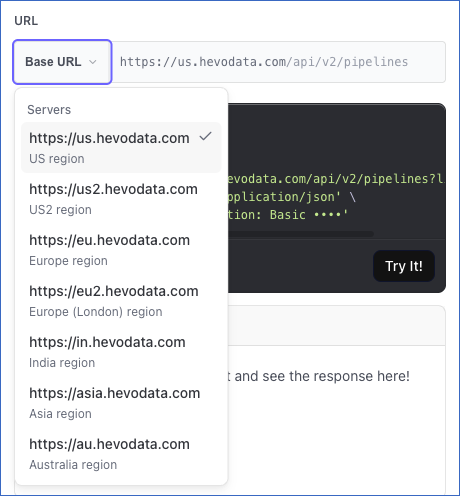
Select your Hevo account region from the Base URL drop-down.
-
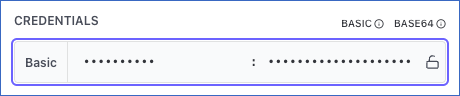
If not already authenticated, enter your Access Key and Secret Key in the CREDENTIALS section. If you do not have these keys, refer to Generating your API Credentials for the steps to generate them.
Step 1: Find your Source Connector
A connector is the integration that Hevo uses to replicate data from a type of Source, such as HubSpot or PostgreSQL. To list the connectors available to your team, you need to call the List All Source Connectors endpoint.
The endpoint you call, and the response it returns, depend on the API version:
Finding the connector with version 2
Perform the following steps to find your Source connector:
-
Navigate to the List All Source Connectors endpoint.
-
The API request is simultaneously generated in the cURL Request block to the right. Click Try It! to make the API request and list the connectors.

For example, the following request lists the connectors available to your team:
GET /api/v2/metadata/sources/connectors?limit=500Once the request is complete, you will get a response code 200 with one page of connectors:
{
  "code": "Success",
  "data": [
    {
      "connector_id": "hubspot",
      "type": "HUBSPOT",
      "display_name": "HubSpot",
      "description": "Replicate data from HubSpot CRM to your chosen data warehouse.",
      "documentation_url": "https://docs.hevodata.com/edge/sources/hubspot/",
      "in_beta": false
    }
  ],
  "next_cursor": null,
  "has_more": false
}
In the response, note the connector_id and the type of the Source you want to replicate data from. You send both when you create the Pipeline.
Connectors that your team does not have access to are not listed. A connector in beta is listed only if it has been enabled for your team.
Finding the connector with version 1
Call the List All Source Connectors endpoint. Version 1 groups the Source types under the connector that ingests data from them, so each connector in the response includes:
connector_id: The unique identifier of the connector, such asSOURCE_CONNECTOR_POSTGRES.supported_types: The Source types that the connector ingests data from. Each one has itstype, such asAWS_RDS_POSTGRES, thenameHevo displays, such asAmazon RDS PostgreSQL, a shortdescriptionof its purpose, andproduct_documentation, a link to the Hevo documentation for that Source.
In the response, note the connector_id of the Source you want to replicate data from, and the matching type inside supported_types.
Step 2: Set up the Pipeline
Once you have identified your connector in the Find your Source Connector section, you provide the configuration details that the Source connects with, along with the configuration details for the Pipeline itself.
The steps to set up the Pipeline differ based on the API version:
Creating a Pipeline with version 2
If you want to create a Pipeline using version 2, perform the following steps:
- Read the connector configuration: Retrieve the configuration details that your Source accepts.
- Create the Pipeline: Specify those configuration details in the
sourceobject of the Create a Pipeline endpoint.
Step 1: Read the Connector Configuration
To read the configuration details that a connector accepts, you need to call the Get Configuration Details of a Source Connector endpoint. The response returns a JSON schema of the source object you send when you create the Pipeline. The schema describes the following:
- Every key the connector accepts.
- The mandatory keys.
- The keys that hold a credential.
- The keys that apply only under a condition.
Perform the following steps to read the connector configuration:
-
Navigate to the Get Configuration Details of a Source Connector endpoint.
-
In the Path Params section, specify the
connector_idyou retrieved in the Find your Source Connector section.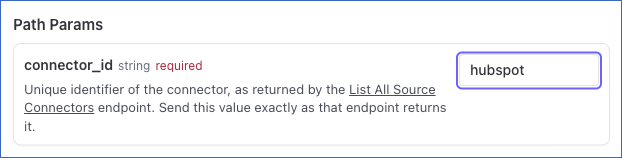
-
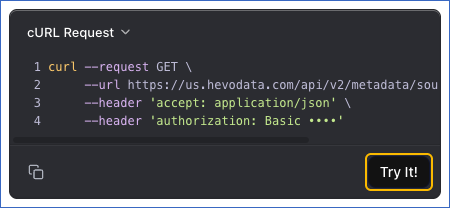
The API request is simultaneously generated in the cURL Request block to the right. Click Try It! to make the API request and read the configuration details.
Once the request is complete, you will get a response code 200 with the schema of the connector. For example, the following response shows the main parts of the HubSpot schema:
{
  "code": "Success",
  "data": {
    "connector_id": "hubspot",
    "display_name": "HubSpot",
    "schema": {
      "$schema": "https://json-schema.org/draft/2020-12/schema",
      "title": "HubSpot Source",
      "description": "Configuration settings that the `source` object accepts for this connector. Send these settings in the `source` object when you create a Pipeline. Each setting lists the values it accepts and whether it is required.",
      "type": "object",
      "required": [
        "name",
        "connector_id",
        "config"
      ],
      "properties": {
        "name": {
          "minLength": 1,
          "type": "string",
          "maxLength": 255,
          "description": "Unique name for your Source, not exceeding 255 characters."
        },
        "connector_id": {
          "const": "hubspot"
        },
        "type": {
          "type": "string",
          "description": "(Optional) Variant of the Source you want the Pipeline to ingest data from. If you do not send this value, Hevo uses the default variant for the connector.",
          "enum": [
            "HUBSPOT"
          ],
          "default": "HUBSPOT"
        },
        "auth": {
          "type": "object",
          "description": "Credentials of your own OAuth app and the token it was issued. Hevo exchanges them for an authorization, so the Source is set up without a browser sign-in.",
          "required": [
            "client_access"
          ],
          "properties": {
            "client_access": {
              "type": "object",
              "required": [
                "client_id",
                "client_secret"
              ],
              "properties": {
                "client_id": {
                  "title": "Client ID",
                  "type": "string"
                },
                "client_secret": {
                  "format": "password",
                  "title": "Client Secret",
                  "type": "string",
                  "writeOnly": true
                }
              }
            },
            "refresh_token": {
              "format": "password",
              "title": "Refresh Token",
              "type": "string",
              "writeOnly": true
            },
            "access_token": {
              "format": "password",
              "title": "Access Token",
              "type": "string",
              "writeOnly": true
            }
          },
          "anyOf": [
            {
              "required": [
                "refresh_token"
              ]
            },
            {
              "required": [
                "access_token"
              ]
            }
          ]
        },
        "config": {
          "type": "object",
          "required": [
            "account_id"
          ],
          "properties": {
            "authentication_method": {
              "type": "string",
              "title": "Authentication Method",
              "description": "How Hevo should authenticate to your HubSpot account.",
              "oneOf": [
                {
                  "const": "OAUTH",
                  "title": "OAuth"
                },
                {
                  "const": "PRIVATE_APP_TOKEN",
                  "title": "Private App Access Token"
                }
              ],
              "default": "OAUTH"
            },
            "account_id": {
              "type": "integer",
              "title": "HubSpot Account ID (Portal ID)",
              "description": "Your HubSpot account/portal ID (numeric)",
              "minimum": 1
            },
            "private_app_access_token": {
              "type": "string",
              "title": "Access Token",
              "description": "Enter access token for the configured private custom app.",
              "format": "password",
              "writeOnly": true
            },
            "client_secret": {
              "type": "string",
              "title": "Client Secret",
              "description": "Enter client secret for the configured private custom app.",
              "format": "password",
              "writeOnly": true
            },
            "historical_sync_timeframe": {
              "type": "string",
              "title": "Historical Sync Duration",
              "description": "How far back Hevo fetches existing data on the first sync.",
              "oneOf": [
                {
                  "const": "LAST_3_MONTHS",
                  "title": "Last 3 months"
                },
                {
                  "const": "LAST_6_MONTHS",
                  "title": "Last 6 months"
                },
                {
                  "const": "LAST_1_YEAR",
                  "title": "Last 1 year"
                },
                {
                  "const": "LAST_2_YEARS",
                  "title": "Last 2 years"
                },
                {
                  "const": "LAST_3_YEARS",
                  "title": "Last 3 years"
                },
                {
                  "const": "LAST_5_YEARS",
                  "title": "Last 5 years"
                },
                {
                  "const": "LAST_8_YEARS",
                  "title": "Last 8 years"
                },
                {
                  "const": "ALL_TIME",
                  "title": "All time"
                }
              ],
              "default": "LAST_3_MONTHS"
            }
          },
          "allOf": [
            {
              "if": {
                "required": [
                  "authentication_method"
                ],
                "properties": {
                  "authentication_method": {
                    "const": "PRIVATE_APP_TOKEN"
                  }
                }
              },
              "then": {
                "required": [
                  "private_app_access_token",
                  "client_secret"
                ]
              }
            }
          ]
        }
      }
    }
  }
}
Reading the Schema
Each keyword in the schema answers one question about the request you are about to send.
| In the schema | Meaning | In this example |
|---|---|---|
properties | The keys you can send. | name, connector_id, type and config. |
required | The keys you must always send. | name, connector_id and config. |
const | The single value the key accepts. | connector_id accepts only hubspot. |
enum and default | The values the key accepts, and the value Hevo applies if you do not send one. | type accepts HUBSPOT, and uses it when you send nothing. |
oneOf | The values you can choose between. | authentication_method accepts OAUTH or PRIVATE_APP_TOKEN. |
title | The label Hevo displays on screen. | account_id is displayed as HubSpot Account ID (Portal ID). |
writeOnly with format: password | Marks a credential. Hevo accepts a credential but never returns its value. | private_app_access_token, client_secret and refresh_token. |
allOf with if and then | The keys made mandatory by the authentication method you choose. | The credentials each authentication method requires. |
type | The kind of value accepted. | account_id takes a number, everything else takes text. |
minLength | The shortest value the key accepts. | name must have at least one character. |
Reading the schema above gives you the keys to send in the source object:
-
name: The name you specify for the Source in Hevo.minLength: 1means it cannot be empty. The name must start with a letter or a digit, and can contain only letters, digits, spaces, hyphens (-) and underscores (_). It must also be unique within your team. A duplicate name returns a400.The same rules apply to the Pipeline name.
-
connector_id: The connector you retrieved in the Find your Source Connector section. Itsconstishubspot, sohubspotis the only value it accepts. -
type: The Source type you retrieved in the same section. It is not inrequiredand has a"default": "HUBSPOT", so Hevo applies that value if you do not send one. When your team can view only some of the connector’s variants, Hevo applies the connector’s base variant instead, which can differ from this default value. The following examples send it, so that the request names the Source type explicitly. -
config: Everything specific to the connector, described by its own schema. Its ownrequiredlist is["account_id"], as the example above shows, so that value is always sent. Theauthentication_methodkey is optional, because it has a default ofOAUTH. Send it explicitly to choosePRIVATE_APP_TOKEN. -
account_id: The HubSpot account identifier. It is"type": "integer", so send12345678, not"12345678". -
authentication_method: The method Hevo authenticates with. It has aoneOfof twoconstvalues, and you send one of them exactly as spelled. Thetitlebeside a value is the label Hevo displays for that method in the Hevo UI, so you can match a method to its label on screen.
The following example shows the oneOf of authentication_method in the HubSpot schema:
"oneOf": [
  { "const": "OAUTH",             "title": "OAuth" },
  { "const": "PRIVATE_APP_TOKEN", "title": "Private App Access Token" }
]
A key that accepts more than one value lists the values you can choose between in items.oneOf.
A key marked "writeOnly": true with "format": "password" is a credential. This schema marks the following credentials:
private_app_access_token: The access token of the HubSpot private app, displayed as Access Token. Send it whenauthentication_methodisPRIVATE_APP_TOKEN.client_secret: The client secret of the HubSpot app, displayed as Client Secret. Send it whenauthentication_methodisPRIVATE_APP_TOKEN.refresh_token: The refresh token issued by HubSpot for your own OAuth app, displayed as Refresh Token. Send it in theauthobject rather than inconfig.
Hevo accepts a credential while you create the Pipeline and never returns it. The version 2 API does not return the Source configuration in any response, so you cannot read a credential back. Keep your own copy of each credential you send.
None of the credentials appear in the required list of config, because the credentials you need depend on the authentication method you select. That dependency is expressed in allOf, as a list of if/then rules. Each rule names a value and the keys that become mandatory once you send it.
| Authentication method | Mandatory keys |
|---|---|
PRIVATE_APP_TOKEN | private_app_access_token and client_secret. |
OAUTH (with the auth object) | client_access.client_id, client_access.client_secret, and refresh_token or access_token. |
A key that no rule names, and that is not in required, is optional. A credential that belongs to a method you did not choose is ignored rather than rejected, so check your field names against the schema.
Hevo evaluates a rule only against the keys you send, not against their default values. Send the key that a rule tests, such as authentication_method, explicitly, even when you want its default value. A few rules of the Hevo UI form cannot be expressed in JSON schema. For example, a rule that a field must contain a valid host name or IP address, or a condition that shows a field only for some combinations of other values. Hevo checks these only when you create the Pipeline, so a request that matches the schema can still fail validation.
Note: A database connector’s schema uses two more keywords. An SSH toggle (ssh_enabled) adds an allOf rule that requires ssh_host, ssh_user and ssh_port when the toggle is true, and ssh_port has a minimum of 0. An SSL toggle (ssl_enabled) requires ssl_ca_file when it is true, and a dependentRequired rule links ssl_client_cert_file and ssl_client_key, so send both of them or leave both out. The ssl_ca_file, ssl_client_cert_file and ssl_client_key values are the PEM text of the certificate or the key. SQL Server and CockroachDB name these toggles ssh and ssl. The keys that a toggle requires keep the same names on every connector. The schema does not return Hevo’s SSH public key or the IP addresses that you must allow in your firewall or security group. Obtain these from the Hevo UI before you create the Pipeline.
Reading the schema gives you the source object for the Create the Pipeline section. The keys you send depend on the authentication method you choose.
Using a Private App Access Token
Send authentication_method as PRIVATE_APP_TOKEN:
"source": {
  "name": "HubSpot Production",
  "connector_id": "hubspot",
  "type": "HUBSPOT",
  "config": {
    "authentication_method": "PRIVATE_APP_TOKEN",
    "account_id": 12345678,
    "private_app_access_token": "pat-na1-xxxxxxxx",
    "client_secret": "xxxxxxxx"
  }
}
Every key in that body came from the schema:
nameandconnector_id: Sent because the top-levelrequiredlist names them.connector_idis sent ashubspot, the only value itsconstaccepts.type: Sent with the value you retrieved in the Find your Source Connector section, so that the request names the Source type explicitly.authentication_methodandaccount_id: Therequiredlist ofconfignamesaccount_id, so it is always sent. Theauthentication_methodvalue is sent to choose the private app token method, because its default isOAUTH.private_app_access_tokenandclient_secret: Sent because the firstif/thenrule makes them mandatory once you selectPRIVATE_APP_TOKEN.client_idandrefresh_token: Not sent, because they belong to the other authentication method.
Using your Own OAuth App
Send the credentials of your own OAuth app in the auth object, beside config:
"source": {
  "name": "HubSpot Production",
  "connector_id": "hubspot",
  "type": "HUBSPOT",
  "config": {
    "account_id": 12345678
  },
  "auth": {
    "client_access": {
      "client_id": "xxxxxxxx",
      "client_secret": "xxxxxxxx"
    },
    "refresh_token": "xxxxxxxx"
  }
}Note: The schema lists every authentication method that the connector’s form offers, including the one that signs in through a browser. The auth property in the schema tells you whether you can authorize the connector through the API. If the schema contains the auth property, select the OAuth method, or leave the authentication method out, and send your own app’s credentials in auth. If the schema does not contain the auth property, the connector does not accept auth. If the connector does not use OAuth, send its credentials in config. Sending auth to it returns a 400.
If the connector authorizes with OAuth, it can be authorized only in the Hevo UI, and sending auth returns a 400.
A field that the Hevo UI fills from a list it fetches, such as the accounts to sync, does not prevent you from creating the Source through the API. Send the values that you want in config. Read Sources you Cannot Authenticate Through the API for the Sources this affects.
The response is a standard JSON schema, so you can validate your request body against it with any JSON schema validation tool, such as Ajv for JavaScript or jsonschema for Python. Validating the body first lets you correct a mistake before you send the request, instead of after a 400. Refer to JSON Schema for the specification, and JSON Schema Tools for the complete list of validation tools.
Step 2: Create the Pipeline
Once your source object is ready, you send it to the Create a Pipeline endpoint along with the configuration details for the Pipeline. You enter the other fields on the endpoint page, copy the request generated from them, and add your source object to it.
Perform the following steps to create your Pipeline:
-
Navigate to the Create a Pipeline endpoint.
-
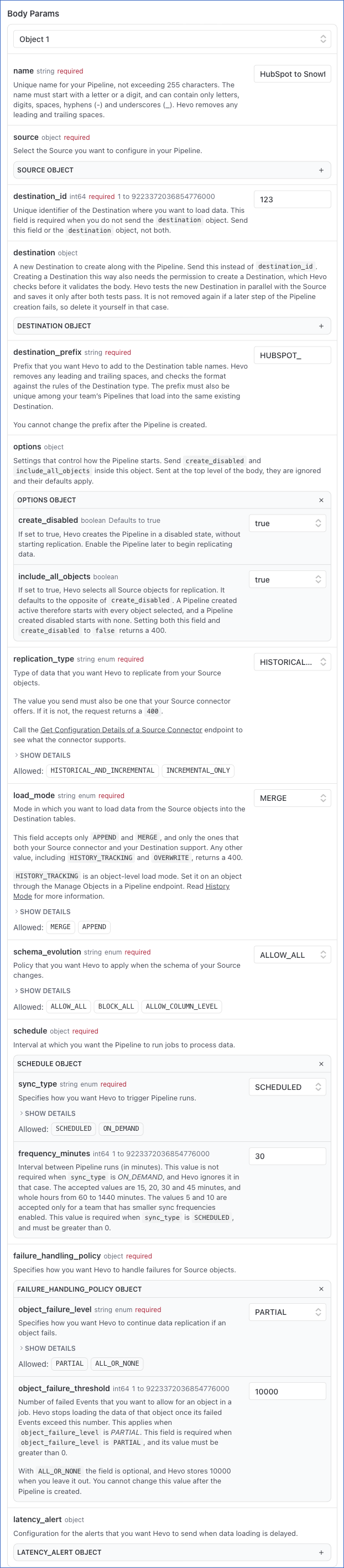
In the Body Params section, specify the following:
-
name: A unique name for your Pipeline, not exceeding 255 characters. For example, HubSpot to Snowflake. -
destination_id: The unique identifier of the Destination you want to load data into. Call the List All Destinations endpoint to retrieve this value. -
destination_prefix: The prefix Hevo adds to the Destination table names. For example, HUBSPOT_. This value is required. It must be unique among your team’s Pipelines that load into the same Destination, and its format is checked against the rules of the Destination type. A prefix already in use returns a400.You cannot change it after the Pipeline is created.
-
replication_type: The data Hevo replicates from your Source objects. The value applies to every object in the Pipeline and cannot be changed after the Pipeline is created. A SaaS Source always replicates both the existing data and the incremental data, soHISTORICAL_AND_INCREMENTALis the value to send for such a Source. This field is required for every Source, and a request without it returns a400.The value you send must also be one that the Source connector offers. Read Types of Data Synchronization for more information. Specify one of the following:
HISTORICAL_AND_INCREMENTAL: Hevo first replicates the data that existed in your Source before the Pipeline was created, and then replicates the incremental data. Hevo recommends this value, because it keeps the data in your Source and your Destination consistent.INCREMENTAL_ONLY: Hevo replicates only the incremental data, meaning the data added or changed after the Pipeline is created. To replicate the existing data at a later time, resync the Pipeline.
-
load_mode(required): The way Hevo writes the replicated records into your Destination tables. The value you specify applies to every object in the Pipeline. If you later set a different load mode for an individual object, that object keeps its own load mode. Specify one of the following:MERGE: Update the existing row that matches the primary key, and insert the rows that do not match.APPEND: Add every record as a new row, without changing the existing ones.
A Pipeline accepts only
APPENDandMERGE, and only the ones that both the Source connector and the Destination support.A value that is not a load mode, or a load mode that the Pipeline does not support, such as
HISTORY_TRACKINGorOVERWRITE, returns a400.To use the
HISTORY_TRACKINGload mode, set it on an object through the Manage Objects in a Pipeline (PATCH) endpoint. Refer to Load Modes for more information about the load modes that an object supports. -
schema_evolution(required): The way Hevo handles a change made in the Source schema after the Pipeline is created, such as a column, table, or schema being added, renamed, or deleted. Read Schema Evolution Policy for the Pipeline behavior corresponding to each type of Source schema change. Specify one of the following:ALLOW_ALL: Hevo syncs every compatible change in the Source schema with your Destination as soon as it is detected. For example, a table added in the Source is created in the Destination, and Hevo runs its historical load first, followed by the incremental one.BLOCK_ALL: Hevo does not sync any change in the Source columns, schemas, or tables with your Destination. The new objects and columns are still listed for the Pipeline, so you can include them for data replication yourself.ALLOW_COLUMN_LEVEL: Hevo syncs a new column of an existing table, but does not create a new table or schema in your Destination.
-
schedule(required): The interval at which Hevo ingests data from your Source. Hevo does not start a run while the previous one is still in progress, and marks the run it skipped as SKIPPED. Read Sync Frequency for more information. Specifysync_typeas one of the following:SCHEDULED: Hevo ingests data on a fixed schedule. Specifyfrequency_minutesas the number of minutes between two runs. The accepted values are 15, 20, 30 and 45 minutes, and whole hours from 60 to 1440 minutes. The values 5 and 10 are accepted only for a team that has smaller sync frequencies enabled. If you setsync_typetoSCHEDULEDand do not specifyfrequency_minutes, the request that creates the Pipeline returns a400error.ON_DEMAND: Hevo does not ingest data on a fixed schedule. You trigger each run yourself, through the Hevo API, an external scheduler such as Airflow, or the Sync Now option in the Hevo UI.
-
failure_handling_policy(required): The way Hevo handles an object with Events that fail during a job. Read Job and Object Statuses for the status Hevo assigns to a job and its objects in each case. Specify the following:-
object_failure_level: SpecifyALL_OR_NONEto load the data of an object only when all of its Events are processed successfully in a job, orPARTIALto load the data of an object even when some of its Events fail. -
object_failure_threshold: The number of failed Events an object is allowed in a job. Hevo does not load the data of that object once its failed Events exceed this number. This applies only whenobject_failure_levelisPARTIAL. If you setobject_failure_leveltoPARTIAL, you must send a value greater than 0. If you do not send a value, the request that creates the Pipeline returns a400error.With
ALL_OR_NONEit is optional, and Hevo stores 10000 when you leave it out. You cannot change this value after the Pipeline is created.latency_alert: An optional object that containsenabledandthreshold_minutes. Withenabledset totrue, the threshold must be between 5 and 21600 minutes, and, for a Pipeline on a schedule, at least twice thefrequency_minutesvalue.
-
-
options.create_disabled: The state the Pipeline is created in. This defaults to true, so the Pipeline is created in a disabled state. A disabled Pipeline gives you the chance to review the objects Hevo identified in your Source, adjust the selection, and start replicating only when you are satisfied with it. Set it to false to start replicating as soon as the Pipeline is created. Read Managing Objects in Pipelines for the steps to adjust the object selection, and Managing Pipelines for the steps to enable the Pipeline.Hevo validates the whole body first, and then tests the Source and the Destination connections in parallel, waiting up to five minutes for each. A failed test returns a 400 that states the connector’s own reason, and nothing is created. A test that is still running after five minutes returns a 500. If the request contains
auth, Hevo uses those credentials to generate an access token for the Source connection test. If a test fails, Hevo also deletes the access token that it generated.The response comes back as soon as the Pipeline is configured, before Hevo has read the schema of your Source. For a short while after that, the object list can be empty and
source_schema_statuscan be missing. Selecting an object by name returns a 404 until Hevo has found it, and enabling the Pipeline returns a 400 or a 409. Call Get Details of a Pipeline or List All Pipeline Objects and wait until the schema is ready, before you select objects or enable the Pipeline. -
options.include_all_objects: The objects selected for replication when the Pipeline is created. If you leave it out, it defaults to the opposite ofoptions.create_disabled. A Pipeline created in a disabled state starts with no object selected, leaving the choice to you, and a Pipeline created active starts with every object selected. It cannot be false whileoptions.create_disabledis false, because a replicating Pipeline with no object selected would replicate nothing. That combination returns a 400. Enabling a Pipeline that has no object selected also returns a 400, so select at least one object before you enable it.
Read Configure the Pipeline Settings for more information about these settings.
-
-
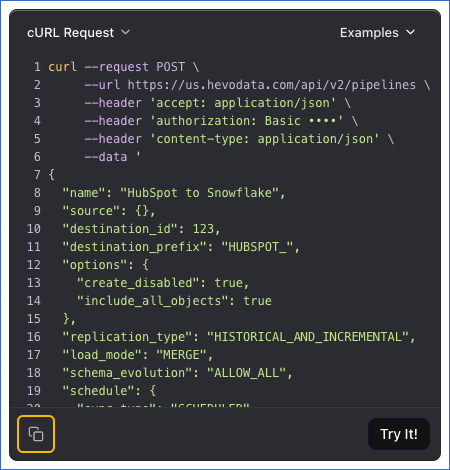
Click the Copy icon below the cURL Request block to copy the request.
-
In the copied request, add the
sourceobject that you prepared in the Read the Connector Configuration section. Your request is then complete, and you can send it from your own client, such as Postman, or by running the command in a terminal.
For example, the following request creates a HubSpot to Snowflake Pipeline that loads data into the Snowflake Destination with the id 123:
{
  "name": "HubSpot to Snowflake",
  "source": {
    "name": "HubSpot Production",
    "connector_id": "hubspot",
    "type": "HUBSPOT",
    "config": {
      "authentication_method": "PRIVATE_APP_TOKEN",
      "account_id": 12345678,
      "private_app_access_token": "pat-na1-xxxxxxxx",
      "client_secret": "xxxxxxxx"
    }
  },
  "destination_id": 123,
  "destination_prefix": "HUBSPOT_",
  "options": {
    "create_disabled": true,
    "include_all_objects": true
  },
  "replication_type": "HISTORICAL_AND_INCREMENTAL",
  "load_mode": "MERGE",
  "schema_evolution": "ALLOW_ALL",
  "schedule": { "sync_type": "SCHEDULED", "frequency_minutes": 30 },
  "failure_handling_policy": { "object_failure_level": "PARTIAL", "object_failure_threshold": 10000 }
}
Once the Pipeline is created, you will get a response code 200 with the details of your Pipeline, including the id that identifies it in every other call.
Creating a Pipeline with version 1
Version 1 lists the configuration details for each connector on the endpoint, so you select your Source type and enter the values on the endpoint page. Version 1 supports the following:
- Sources: All variants of PostgreSQL, MySQL, and Oracle.
- Destinations: Snowflake, BigQuery, and Amazon Redshift.
To create a Pipeline with any other Source or Destination, you must use version 2.
Perform the following steps to create your Pipeline:
-
Navigate to the Create a Pipeline endpoint.
-
In the Body Params section, specify a unique name for your Pipeline in the
nameparameter, not exceeding 255 characters. For example, My Pipeline.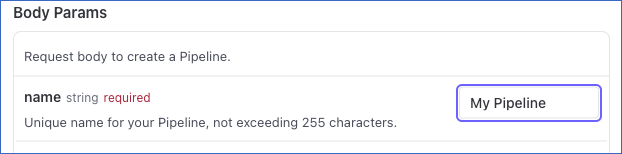
-
In the
sourceobject, select your Source type from theconnector_iddrop-down. For example, here, we are selecting SOURCE_CONNECTOR_POSTGRES.
-
Specify the configuration details that your Source requires, such as its host name, port, and database user. Read the respective Source documentation for the steps to retrieve these values.
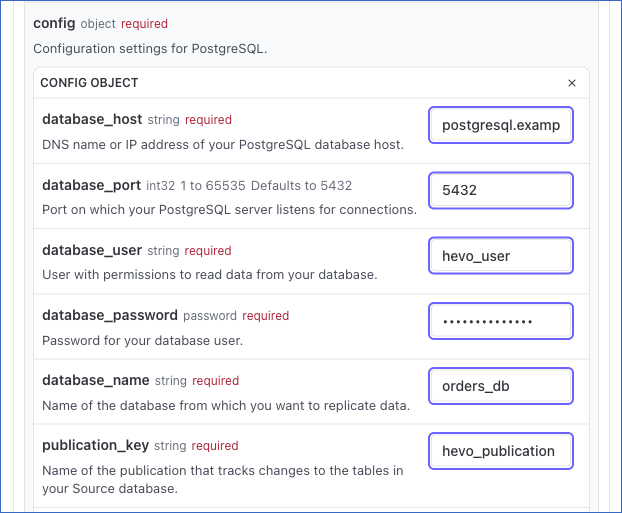
-
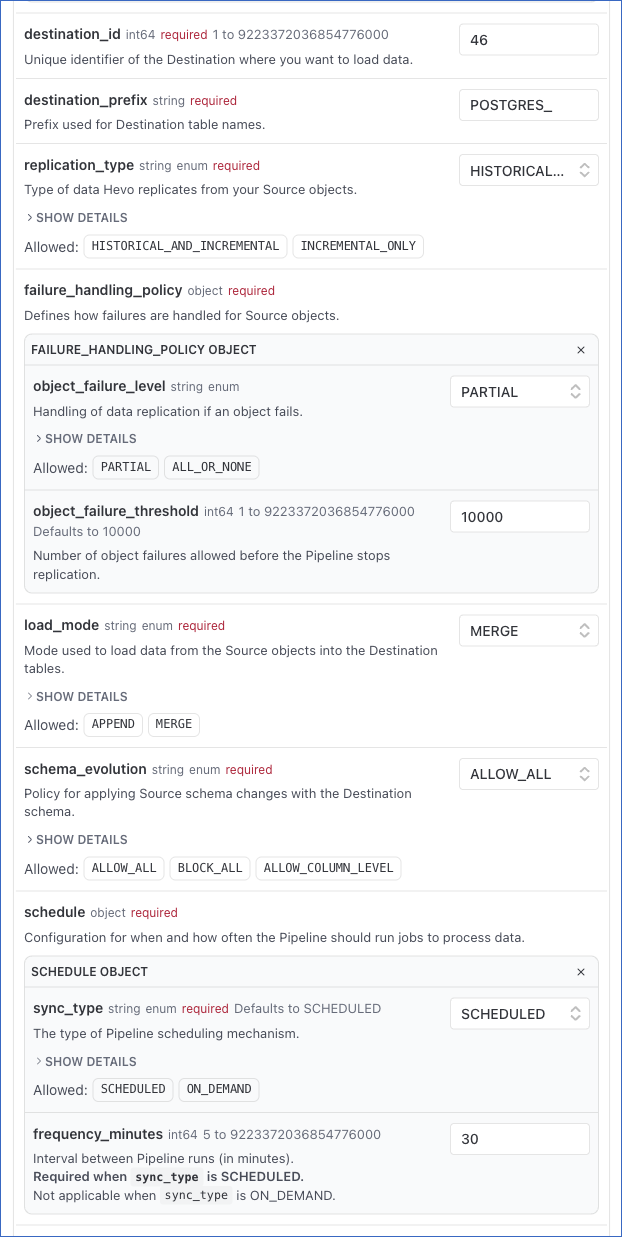
Specify the remaining fields for your Pipeline:
-
destination_id: The unique identifier of the Destination you want to load data into. Call the List All Destinations endpoint to retrieve this value. -
destination_prefix: The prefix Hevo adds to the Destination table names. For example, POSTGRES_. -
replication_type: The data Hevo replicates from your Source objects. The value applies to every object in the Pipeline and cannot be changed after the Pipeline is created. Read Types of Data Synchronization for more information. Specify one of the following:HISTORICAL_AND_INCREMENTAL: Hevo first replicates the data that existed in your Source before the Pipeline was created, and then replicates the incremental data. Hevo recommends this value, because it keeps the data in your Source and your Destination consistent.INCREMENTAL_ONLY: Hevo replicates only the incremental data, meaning the data added or changed after the Pipeline is created. To replicate the existing data at a later time, resync the Pipeline.
-
load_mode: The way Hevo writes the replicated records into your Destination tables. The value you specify applies to every object in the Pipeline. If you later set a different load mode for an individual object, that object keeps its own load mode. Specify one of the following:MERGE: Update the existing row that matches the primary key, and insert the rows that do not match.APPEND: Add every record as a new row, without changing the existing ones.
-
schema_evolution: The way Hevo handles a change made in the Source schema after the Pipeline is created, such as a column, table, or schema being added, renamed, or deleted. Read Schema Evolution Policy for the Pipeline behavior corresponding to each type of Source schema change. Specify one of the following:ALLOW_ALL: Hevo syncs every compatible change in the Source schema with your Destination as soon as it is detected. For example, a table added in the Source is created in the Destination, and Hevo runs its historical load first, followed by the incremental one.BLOCK_ALL: Hevo does not sync any change in the Source columns, schemas, or tables with your Destination. The new objects and columns are still listed for the Pipeline, so you can include them for data replication yourself.
-
schedule: The interval at which Hevo ingests data from your Source. Hevo does not start a run while the previous one is still in progress, and marks the run it skipped as SKIPPED. Read Sync Frequency for more information. Specifysync_typeas one of the following:SCHEDULED: Hevo ingests data on a fixed schedule. Specifyfrequency_minutesas the number of minutes between two runs.ON_DEMAND: Hevo does not ingest data on a fixed schedule. You trigger each run yourself, through the Hevo API, an external scheduler such as Airflow, or the Sync Now option in the Hevo UI.
-
failure_handling_policy: The way Hevo handles an object with Events that fail during a job. Read Job and Object Statuses for the status Hevo assigns to a job and its objects in each case. Specify the following:object_failure_level: SpecifyALL_OR_NONEto load the data of an object only when all of its Events are processed successfully in a job, orPARTIALto load the data of an object even when some of its Events fail.object_failure_threshold: The number of failed Events an object is allowed in a job. Hevo does not load the data of that object once its failed Events exceed this number. This applies only whenobject_failure_levelisPARTIAL, and defaults to 10000.
Read Configure the Pipeline Settings for more information about these settings.
-
-
The API request is simultaneously generated in the cURL Request block to the right. Click Try It! to make the API request and create your Pipeline.
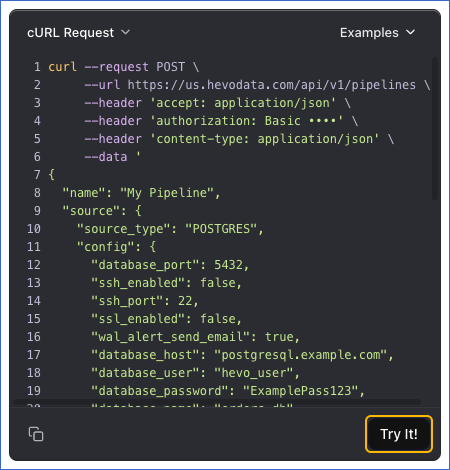
Once the Pipeline is created, you will get a response code 200 in the response block with the details of your Pipeline, including the id that identifies it in every other call.
After the Pipeline is created, you can select the objects you want to replicate from your Source. Read Managing Objects in Pipelines for the steps to configure the objects in your Pipeline.