
Your first API request confirms that your credentials work and shows you what a Hevo response looks like. The example below uses the List All Pipelines endpoint, which reads only Pipeline data and changes nothing, so it is safe to run against a live account.
Perform the following steps to make your first API request:
- Generate the API credentials that identify you.
- Send the request and receive a response.
- Check the response against what you see in the Hevo UI.
Prerequisites
- An active Hevo account. You can start with a 14-day full-feature, free trial account.
- You are assigned the required role for the endpoint you want to use.
Step 1: Generating your API credentials
Your API credentials are a pair of keys, an Access Key and a Secret Key, that identify you to the API in your account region. You send them with every API request. If you do not have these credentials, refer to Generating your API Credentials for the steps to generate them. Read Authenticating your Requests for more information about how they are used in an API request.
Step 2: Making the API request
Requests sent from an endpoint page run against your Hevo account. A request that creates, changes, or deletes something changes your real data.
To retrieve information from an endpoint, you send a request to it from its endpoint page. Perform the following steps to do this:
-
Navigate to the List All Pipelines endpoint.
-
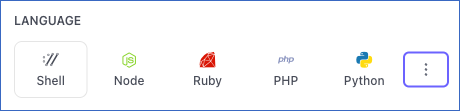
In the top-right section, select your preferred programming language format for the API request. For example, select Shell. Click the More icon to view additional languages.
-
If not already authenticated, enter the following details in the CREDENTIALS section:
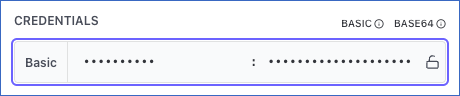
- username: The Access Key that you generated in the Generating your API Credentials section.
- password: The Secret Key that you generated in the Generating your API Credentials section.
-
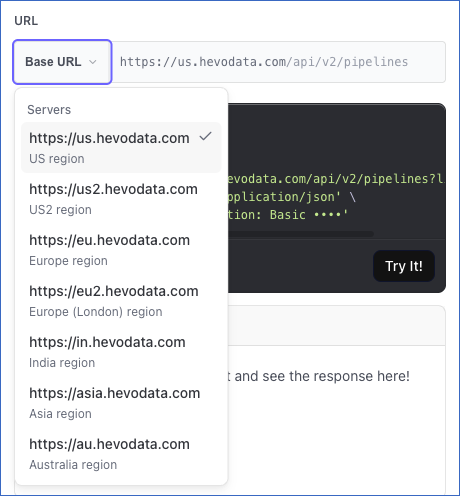
Select the Hevo account region for which you generated the API credentials from the Base URL drop-down.
-
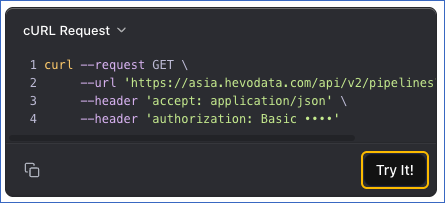
Click Try It! The response appears in the RESPONSE section below the cURL Request block.
-
(Optional) Click Headers at the top of the response to view the headers that Hevo returned with the response body.
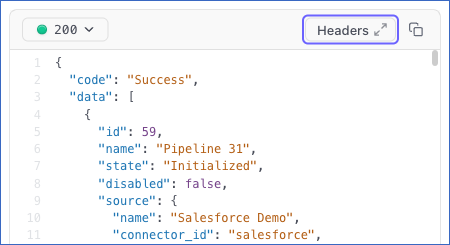
Sending the request from your own client
The steps above send the request from the endpoint page, which is useful while you are testing an endpoint. To call the API from your own integration, you send the same request from a client. A client is any tool that can send an HTTP request, such as the cURL command in a terminal, an API client such as Postman, or code in your own application.
The endpoint page builds the request for you. It displays the request as a command in the cURL Request block, and the Copy icon below it copies the command to your clipboard.
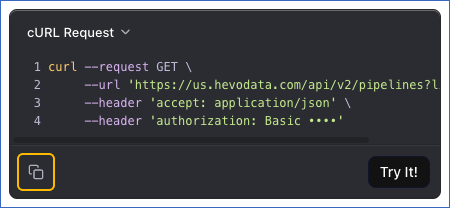
You can run this command in a terminal, or import it into an API client such as Postman. To write the request yourself, use the base URL for your account region and pass your API credentials as the user name and password. The following example lists the Pipelines in your workspace:
curl --request GET \
  --url 'https://us.hevodata.com/api/v2/pipelines?limit=20' \
  --header 'accept: application/json' \
  --user '<ACCESS_KEY>:<SECRET_KEY>'
Read Base URLs for the base URL of each region, and Authenticating your Requests for more information about how the credentials are sent.
Reading the response
The following example shows the response returned by this request:
{
  "code": "Success",
  "data": [
    {
      "id": 12345,
      "name": "Customer Orders Pipeline",
      "state": "Initialized"
    }
  ],
  "next_cursor": null,
  "has_more": false
}
The code field confirms that the request is complete, and the data field contains one entry for each Pipeline. Only three fields of each Pipeline are displayed in the example response. Read API Response Body for more information about the fields returned in a response, and Pagination for more information about how to request the next page of results.
Step 3: Validating the API response
Before you integrate an endpoint into your application, check that it returns what you expect. To do this, verify the API response against the data in your Hevo UI.
For example:
- When using the Get Details of a Pipeline endpoint, verify that the Pipeline details returned by the API match those in the Hevo UI.
- When using the List All Pipelines endpoint, verify that the Pipelines returned by the API match those in the Pipelines List View of the Hevo UI.
Troubleshooting your First Request
If your first request does not return what you expect, the response tells you the reason. The following table lists the most common results and the action to take for each one:
| Response | Cause | Action |
|---|---|---|
401 | The Access Key or the Secret Key is missing or mistyped, or the credential pair was deleted. The request might also have been sent to the base URL of another region. Your API credentials work only in the region that you generated them in. | Check both values in your request. Read Rotating your API Credentials if the pair was deleted. Check your region in the URL of your Hevo account, and send the request to the base URL of that region. Refer to Base URLs for the base URL of each region. |
Any other 4xx response | Any other 4xx on this request comes from a value you sent, usually a limit outside 1 to 500 or a cursor that cannot be decoded. | Check the limit and cursor values in your request. Read Pagination for the values that each one accepts. |
200 with an empty data array | Your workspace has no Pipelines in the region that this base URL serves. A read is never filtered by the role of the user who generated the credentials. | Read Roles and Permissions for more information about the actions a credential pair can perform. |
Once your credentials work and you can read a response, you are ready to create Destinations and Pipelines, and manage the ones you already have:
- Read Creating Destinations with Hevo API for the steps to create the Destination that your Pipelines load data into.
- Read Creating a Pipeline with Hevo API for the steps to create a Pipeline through the API.
- Read Managing Pipelines for more information about how to list, read, enable, disable, and delete a Pipeline.