Every response from the Hevo API is in JSON format. All successful responses have the same structure, and all failed responses have a different structure.
When a request succeeds, the response contains the following fields:
| Field | Description |
|---|---|
| code | The outcome of the request. Success, with a 200 response code, when the request is complete, and Accepted, with a 202 response code, when Hevo has started a task that is still running. |
| message | A description of the outcome. It is returned when you create or update a resource or start a task. It is left out of a read. |
| data | The resource you requested. The fields of that resource are returned inside it. data is an object when you request a single resource, and an array when you request a list. |
The following example shows the response returned when you send a request to the Enable a Pipeline endpoint:
{
  "code": "Accepted",
  "message": "Pipeline is being enabled.",
  "data": { "id": 12345, "name": "Customer Orders Pipeline", "state": "Enabling" }
}
In the example above, data contains the Pipeline, and the Pipeline's id, name, and state fields are returned inside it. Only three fields are displayed in the example response. A response returns every field of the resource, and the fields returned by each endpoint are listed on its own page.
A failed request returns a different set of fields. Read The Error Body for more information.
Refer to the following sections to understand each kind of response:
- Reading a List Response: Read a response that returns more than one resource.
- Reading an Action Response: Read a response that starts a task.
- The Error Body: Read a response for a request that failed.
- Timestamps: Understand the time values the API returns.
- Using the Try It Panel: Send a request from an endpoint page.
Reading a List Response
A list endpoint returns data as an array, along with two pagination fields, next_cursor and has_more, that you use to request the next page of results:
{
  "code": "Success",
  "data": [ { "id": 12345, "name": "Customer Orders Pipeline" } ],
  "next_cursor": "MTIz",
  "has_more": true
}
Read Pagination for more information about paging through a list.
Reading an Action Response
An action, such as enabling or resyncing a Pipeline, starts a task that continues to run after Hevo sends its response. The response returns code as Accepted, and data contains the resource as it is immediately after Hevo accepts your request.
{
  "code": "Accepted",
  "message": "Pipeline is being enabled.",
  "data": { "id": 12345, "name": "Customer Orders Pipeline", "state": "Enabling" }
}
In the example above, state is Enabling, which is the state the Pipeline is passing through, not the state it reaches once the task is complete. To know when the task is complete, send a request to the Get Details of a Pipeline endpoint and check its state field. Read Understanding Pipeline States for more information about the states and how to check them.
The Error Body
A failed request returns a different set of fields.
| Field | Description |
|---|---|
| code | The kind of failure that occurred. When your application handles a failed request, check this value in your code, not the text of the message field, to decide what to do next. The text of the message field can change. |
| message | Explains why the request failed. If Hevo can identify the cause, the message also names the value that was rejected and what to send in its place. |
| error_reference_id | Identifier to quote when contacting Hevo Support. Hevo sets this value only on a 500, and returns null for every other response, including a 409 and a 429. |
| api_doc_url | Link to the documentation for the endpoint that you called. |
The following example shows the response returned when you request a Pipeline that does not exist. Hevo returns it with a 404 response code:
{
  "code": "RESOURCE_NOT_FOUND",
  "message": "No Pipeline was found with the ID 99999999.",
  "error_reference_id": null,
  "api_doc_url": "https://edge-api-docs.hevodata.com/reference/get_api-v2-pipelines-pipeline-id"
}
A request with missing or invalid credentials returns a 401 response code with a different body. Read Handling Errors for more information.
Timestamps
Every timestamp that the API returns, such as created_at and updated_at, is the number of milliseconds since the Unix epoch, which is midnight UTC on 1 January 1970. For example, a Pipeline created on 16 March 2026 at 06:03:49 UTC returns the following value:
{ "created_at": 1773641029000 }To convert the value to a date, use the date function of your programming language. Some languages, such as JavaScript, accept the value in milliseconds as it is. Others, such as Python, expect the time in seconds. For these, divide the value by 1000 to convert it from milliseconds to seconds before you convert it to a date. For example, 1773641029000 milliseconds is 1773641029 seconds.
Using the Try It Panel
You can try out different API requests in the Hevo API to check their responses. You need to provide your authentication credentials when you try out any endpoint for the first time.
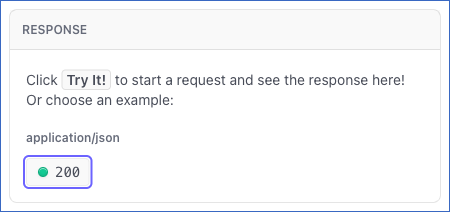
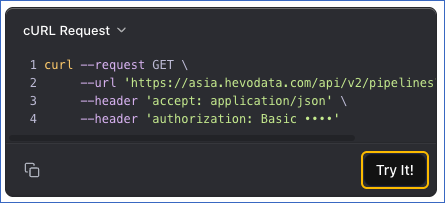
When you click Try It!, the response is displayed based on the request parameters you provide.
Click Headers at the top of the response to view the headers that Hevo returned with the response body.
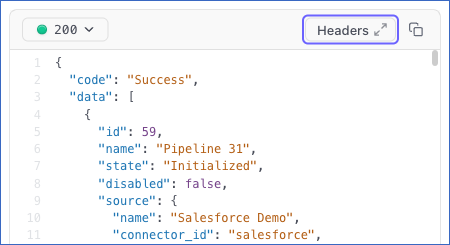
Click the response code, 200, in the RESPONSE section to view the details of the parameters included in a successful response. This action will display a sample response.