
A Pipeline is the connection that moves data from a Source, such as HubSpot or PostgreSQL, into a Destination, such as Snowflake. Once you create a Pipeline, Hevo replicates data on the schedule you set, and you manage the Pipeline through the API from then on.
You can list the Pipelines in your workspace, read the details of a single Pipeline, start and stop its replication, and delete a Pipeline when you no longer need the data it replicates.
Refer to the following sections to manage an existing Pipeline:
- Listing your Pipelines: Read the Pipelines in your workspace, and filter the list by state, connector or Destination.
- Reading one Pipeline: Read all the details of a single Pipeline.
- Enabling a Pipeline: Resume data replication for a disabled Pipeline, or start a Pipeline that was created in a disabled state.
- Disabling a Pipeline: Stop data replication for a Pipeline while keeping its configuration, object selection, and job history.
- Deleting a Pipeline: Remove a Pipeline and its Source permanently, without deleting the Destination tables.
Prerequisites
- An active Hevo account. You can start with a 14-day full-feature, free trial account.
- You are assigned the required role for the endpoint you want to use.
- You have generated your API credentials. Read Authentication for the steps to generate them.
- An existing Pipeline. Read Creating a Pipeline with Hevo API for the steps to create one.
To make an API call, you need to first perform the following steps:
-
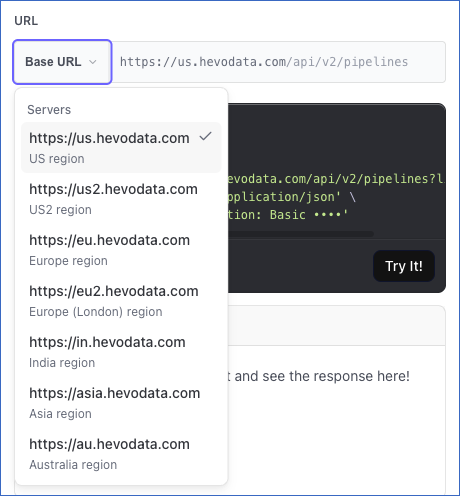
Select your Hevo account region from the Base URL drop-down.
-
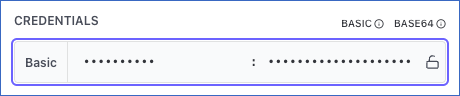
If not already authenticated, enter your Access Key and Secret Key in the CREDENTIALS section.
Note: The examples in the following sections use 12345 as the Pipeline identifier. Replace it with the id of your own Pipeline. Read Listing your Pipelines for the steps to find it.
Listing your Pipelines
You can list your Pipelines to find the Pipeline you want to manage. Each Pipeline in the list contains its id, its name and current state, the Source it reads from, the Destination it loads into, and the schedule it runs on.
Perform the following steps to list your Pipelines:
-
Navigate to the List All Pipelines endpoint.
-
(Optional) In the Query Params section, specify the parameters that filter the list. Read Filters for the parameters you can use.

-
The API request is simultaneously generated in the cURL Request block to the right. Click Try It! to make the API request and list your Pipelines.

The Pipelines are listed in the order they were created, starting with the oldest, and the list is returned one page at a time. Pipelines that are being deleted, or have been deleted, are never listed. Read Pagination for the steps to fetch each page.
Note: A list never returns the status of the last Source schema refresh or the Pipeline's recent runs. These values are returned in the source_schema_status and runs fields respectively, and are available only when you send a request to the Get Details of a Pipeline endpoint for that Pipeline. Refer to Reading one Pipeline for the steps.
Filters
You can filter the list with the following query parameters:
| Parameter | Returns |
|---|---|
state | The Pipelines in the specified states. Repeat the parameter for several states. |
connector_id | The Pipelines with a Source that uses this connector. |
destination_id | The Pipelines that load data into this Destination. |
The values are not case-sensitive. Deleting and Deleted cannot be used with state, because deleted Pipelines are never listed. A request that uses them returns a 400. The state filter takes the state names that the API returns, such as Initialized or Disabled, and Failed returns the Pipelines in every failed state. The connector_id value must be the complete identifier of the connector, such as hubspot. A partial identifier, such as hub, does not match any Pipeline. A destination_id value that is not a number returns a 400.
For example, the following request returns the Pipelines in the Initialized state that replicate data from HubSpot:
curl --request GET \
  --url 'https://us.hevodata.com/api/v2/pipelines?state=Initialized&connector_id=hubspot' \
  --header 'accept: application/json' \
  --user '<ACCESS_KEY>:<SECRET_KEY>'
Reading one Pipeline
You can read a single Pipeline to get all of its details, or to check its state after you perform an action on it.
Perform the following steps to read a Pipeline:
-
Navigate to the Get Details of a Pipeline endpoint.
-
In the Path Params section, specify the
pipeline_id. This is the unique identifier of the Pipeline you want to read.
-
The API request is simultaneously generated in the cURL Request block to the right. Click Try It! to make the API request and read your Pipeline.
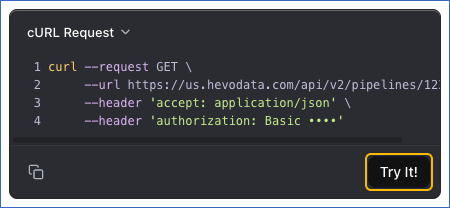
For example, the following request returns the details of the Pipeline with the id 12345:
curl --request GET \
  --url https://us.hevodata.com/api/v2/pipelines/12345 \
  --header 'accept: application/json' \
  --user '<ACCESS_KEY>:<SECRET_KEY>'
Once the request is complete, you will get a response code 200 with all the details of the Pipeline, including source_schema_status and runs. If Hevo cannot read one of these values when you send the request, that value is not returned.
Read Understanding Pipeline States for more information about the states a Pipeline passes through.
Enabling a Pipeline
You can enable a Pipeline to resume data replication. Enabling is also the step that starts a Pipeline created in a disabled state, once you have selected the objects that you want to replicate.
Following are the scenarios in which you may want to enable a Pipeline:
- You created the Pipeline through the API and selected its objects, and you are ready to start replicating data.
- You disabled the Pipeline earlier and want to resume replication.
You must consider the following before you enable a Pipeline:
- Only a
DisabledPipeline can be enabled. Enabling a Pipeline in any other state returns a 400 that names its current state. A Pipeline that is changing state returns a 409 instead. - You must select the objects that you want to replicate before you enable the Pipeline. For example, if you created the Pipeline in a disabled state, select its objects first. Read Changing the Object Selection for the steps. If no object of the Pipeline is selected for replication, the request returns a
400. - Once you create a Pipeline, the request may return a
409even though the Pipeline is already in theDisabledstate, because Hevo is still finishing the work that created the Pipeline. Retry the request a few seconds later. - If the first historical load of the Pipeline is still incomplete, Hevo also reads the Source schema and the Destination schema again, and resets the object mappings, when it enables the Pipeline. If that load has finished, Hevo does not read the schemas again.
Perform the following steps to enable a Pipeline:
-
Navigate to the Enable a Pipeline endpoint.
-
In the Path Params section, specify the
pipeline_id. This is the unique identifier of the Pipeline you want to enable.
-
The API request is simultaneously generated in the cURL Request block to the right. Click Try It! to make the API request and enable your Pipeline.
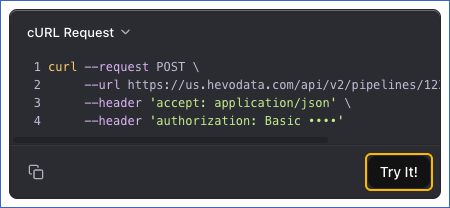
For example, the following request enables the Pipeline with the id 12345:
curl --request POST \
  --url https://us.hevodata.com/api/v2/pipelines/12345/actions/enable \
  --header 'accept: application/json' \
  --user '<ACCESS_KEY>:<SECRET_KEY>'
Once the request is accepted, you will get a response code 202 with the Pipeline in the Enabling state. Read the Pipeline at regular intervals until the state changes to Initialized, which confirms that the Pipeline is replicating data. Refer to Reading one Pipeline for the steps. If the state changes to Failed instead, the Pipeline was not enabled, and you can then only resync or delete it.
Read Enabling your Edge Pipeline for more information about the actions performed on your Pipeline when you enable it.
Disabling a Pipeline
You can disable a Pipeline to stop it from replicating data, while keeping its configuration, object selection, and job history intact.
Following are the scenarios in which you may want to disable a Pipeline:
- Your Source or Destination is unavailable for a while, such as during a database upgrade or a move to a new server, and you do not want the Pipeline to run during that time.
- You want to stop consuming Events for a period, such as at the end of a billing cycle.
- You are investigating an issue and want replication to stop while you do so.
You must consider the following before you disable a Pipeline:
- Only an
InitializedPipeline can be disabled. Disabling a Pipeline in any other state returns a400that names its current state. A Pipeline that is changing state returns a 409 instead. - The Pipeline does not run to its schedule while it is disabled, and no data is replicated.
- Disabling a Pipeline does not remove any data from the Destination.
Perform the following steps to disable a Pipeline:
-
Navigate to the Disable a Pipeline endpoint.
-
In the Path Params section, specify the
pipeline_id. This is the unique identifier of the Pipeline you want to disable.
-
(Optional) In the Body Params section, if you want Hevo to cancel the active jobs in the Pipeline, including the ingestion and loading tasks, set
cancel_active_jobsto true. By default, it is false, and Hevo completes any active jobs, ensuring that all ingested data is loaded into the Destination.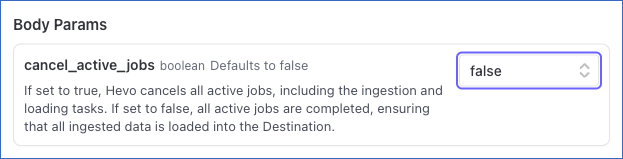
-
The API request is simultaneously generated in the cURL Request block to the right. Click Try It! to make the API request and disable your Pipeline.
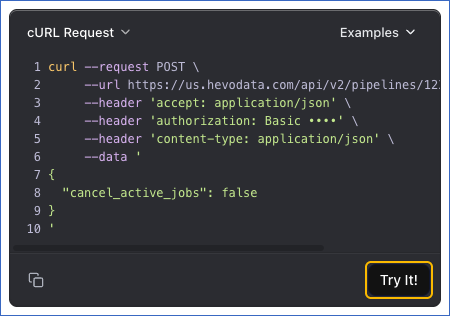
For example, the following request disables the Pipeline with the id 12345:
curl --request POST \
  --url https://us.hevodata.com/api/v2/pipelines/12345/actions/disable \
  --header 'accept: application/json' \
  --user '<ACCESS_KEY>:<SECRET_KEY>'
The following request sends cancel_active_jobs in the request body and lets the jobs that are already running finish:
curl --request POST \
  --url https://us.hevodata.com/api/v2/pipelines/12345/actions/disable \
  --header 'accept: application/json' \
  --header 'content-type: application/json' \
  --user '<ACCESS_KEY>:<SECRET_KEY>' \
  --data '{
  "cancel_active_jobs": false
}'
Once the request is accepted, you will get a response code 202 with the Pipeline in the Disabling state. Read the Pipeline at regular intervals until the state changes to Disabled. Refer to Reading one Pipeline for the steps. If the state changes to Failed instead, the Pipeline was not disabled, and you can then only resync or delete it.
Read Disabling your Edge Pipeline for more information about the actions performed on your Pipeline when you disable it.
Deleting a Pipeline
You can delete a Pipeline when the data it replicates is no longer needed.
Deleting a Pipeline is permanent and cannot be undone. The Source, the schedules, the job history, and the alert subscriptions are deleted along with it.
Following are the scenarios in which you may want to delete a Pipeline:
- The Pipeline was created for testing and is no longer required.
- The Destination no longer requires the data that the Pipeline replicates.
- The Pipeline was created in error.
You must consider the following before you delete a Pipeline:
- The Source is created by the Pipeline and belongs to it alone, so it cannot be kept when the Pipeline is deleted.
- Hevo does not delete the Destination tables or the data already loaded into them. Drop those tables yourself if you no longer need the data.
- If you may need the Pipeline again, disable it instead of deleting it. Disabling keeps the configuration and the job history intact. Read Disabling a Pipeline for the steps.
- A Pipeline can be deleted from any state.
Perform the following steps to delete a Pipeline:
-
Navigate to the Delete a Pipeline endpoint.
-
In the Path Params section, specify the
pipeline_id. This is the unique identifier of the Pipeline you want to delete.
-
The API request is simultaneously generated in the cURL Request block to the right. Click Try It! to make the API request and delete your Pipeline.
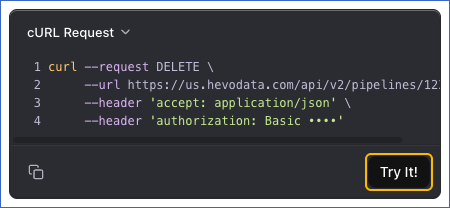
For example, the following request deletes the Pipeline with the id 12345:
curl --request DELETE \
  --url https://us.hevodata.com/api/v2/pipelines/12345 \
  --header 'accept: application/json' \
  --user '<ACCESS_KEY>:<SECRET_KEY>'
Once the request is accepted, you will get a response code 202 with the Pipeline in the Deleting state. Deletion is not immediate, but the Pipeline is no longer returned by the API, and reading or deleting it again returns a 404.