
In this page, you will learn how to use the Hevo API to make API requests.
Prerequisites
- An active Hevo account. Click here to sign up for a free Trial account.
- You are assigned the required role for the endpoint you want to use.
Step 1: Generating your API credentials
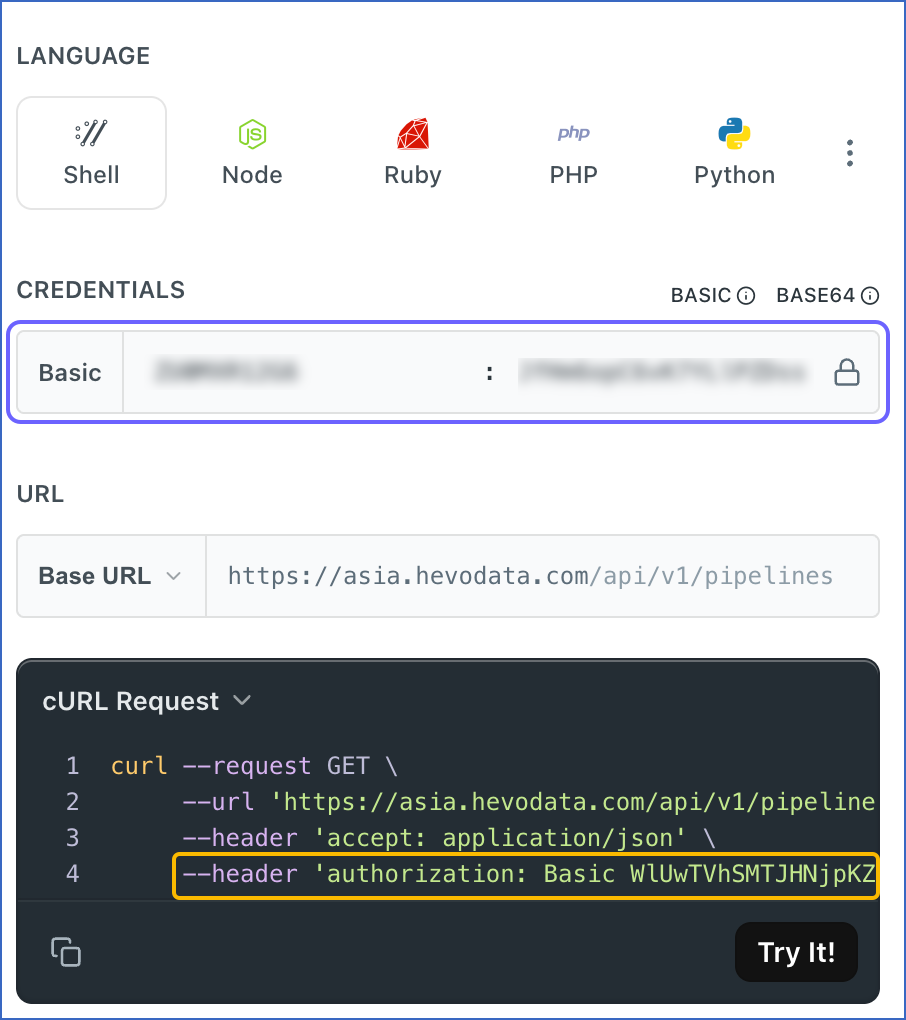
In this step, you will generate the API credentials required to make the request. The API credentials consist of an API key and a secret key that you generate in Hevo. These credentials are used to authenticate API requests and must be sent as a Basic token in the authorization header.
Note: API credentials are valid for all Hevo APIs and need to be generated only once.
In this authentication method:
- The API key acts as the username.
- The secret key acts as the password.
The Basic token is generated by combining and encoding the API key and secret key values.
To generate the API credentials in Hevo:
-
Click on the appropriate link below to access the API Keys page for your Hevo account's region:
Data Pipeline Region Hevo API Base URL Asia (asia) https://asia.hevodata.com/account/api-keys Australia (au) https://au.hevodata.com/account/api-keys Europe (eu) https://eu.hevodata.com/account/api-keys India (in) https://in.hevodata.com/account/api-keys US east (us) https://us.hevodata.com/account/api-keys US west (us2) https://us2.hevodata.com/account/api-keys -
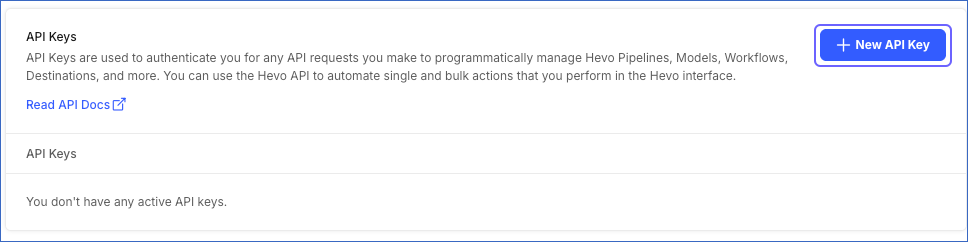
Click + New API Key.
-
Click Download to save your credentials as a JSON file.
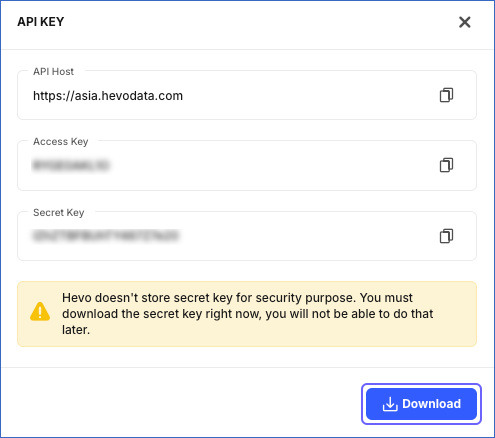
Hevo does not store the API secret key due to security reasons. Therefore, you must save these details securely as you will not be able to retrieve the secret key again.
Once you have the API key and secret key, use them as the username and password to generate the Basic token for all the API calls that you make.
Step 2: Making the API request
In this step, you will send your first API request to retrieve information from the selected endpoint. To do so:
-
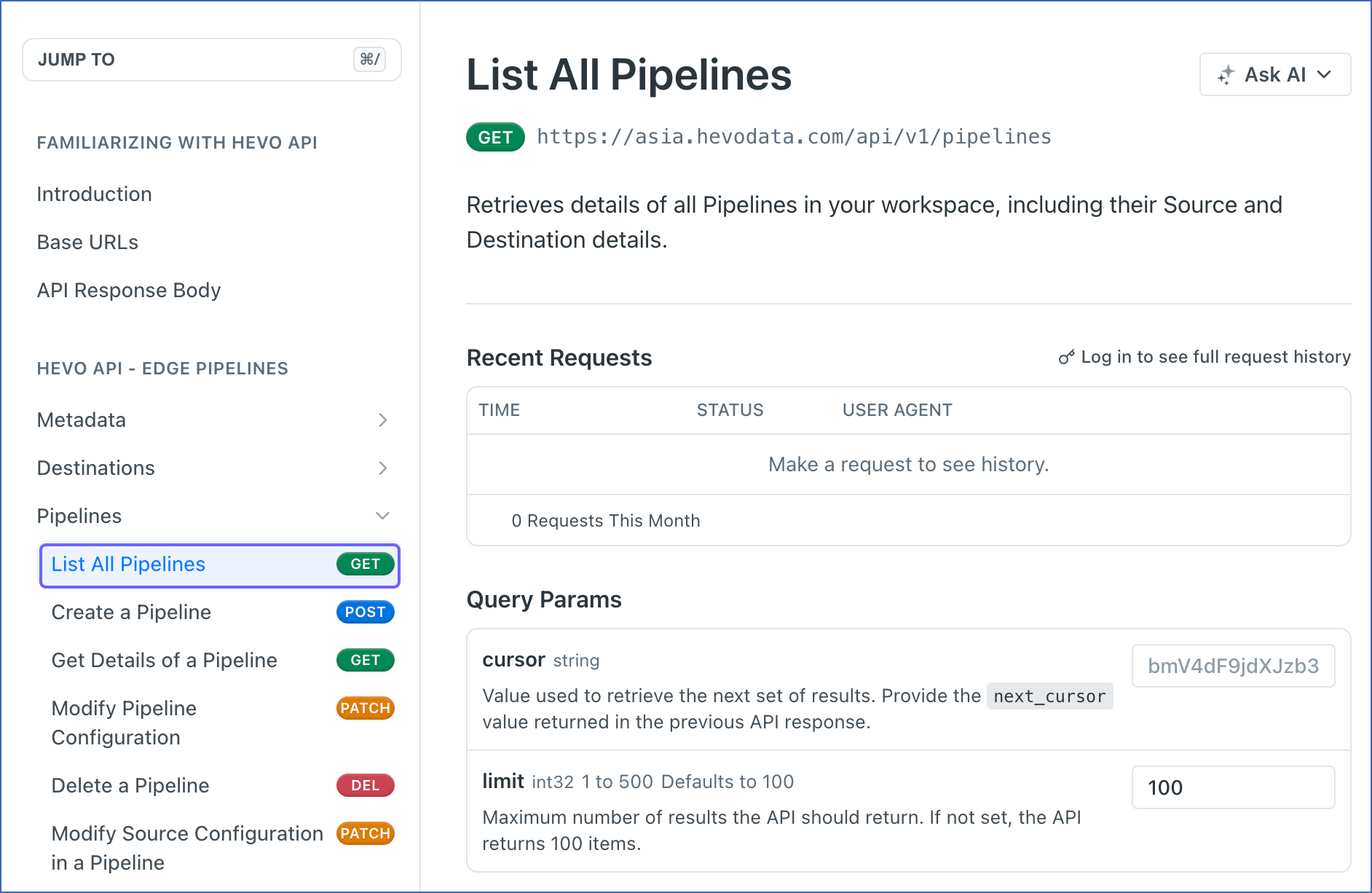
Use the left navigation pane to browse the available API endpoints.
-
Click an endpoint name to open its detailed view.
-
In the top-right section, select your preferred programming language format for the API request. For example, select Shell. Click the More (
 ) icon to view additional languages.
-
If not already authenticated, enter the following details in the CREDENTIALS section:
- username: The API token you generate in Hevo.
- password: The Secret Key you generate in Hevo.
-
Select the Hevo account region for which you generated the API credentials in Step 1 from the Base URL drop-down.
-
Click Try It!
Based on the values you provide, the appropriate response is generated. -
(Optional) Click the Expand (
 ) icon to view the detailed API response.
Step 3: Validating the API response
As a best practice, verify the API response against the data in your Hevo UI before integrating the endpoint into your application.
For example:
-
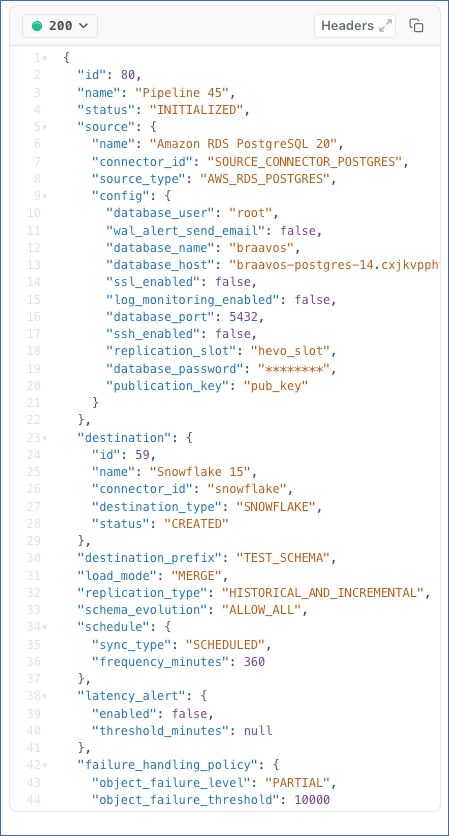
When using the Get Details of a Pipeline endpoint, verify that the Pipeline details returned by the API match those in the Hevo UI.
Sample response
-
When using the Delete a Pipeline endpoint, verify in the Hevo UI that the Pipeline is successfully deleted.