
You can change the configuration details of a Pipeline after you create it, such as its name, its schedule, or the way data is loaded into the Destination. Some configuration details are set when the Pipeline is created and cannot be changed later.
Refer to the following sections to change a Pipeline's configuration details:
- Editable Fields: The configuration details you can change.
- Fields you Cannot Change: The configuration details you cannot change.
- Sending a Change: Send the configuration details you want to change.
- Applying a Change: The states the Pipeline moves through while a change is applied.
Prerequisites
- An active Hevo account. You can start with a 14-day full-feature, free trial account.
- You are assigned the required role for the endpoint you want to use.
- You have generated your API credentials. Read Authentication for the steps to generate them.
- An existing Pipeline. Read Creating a Pipeline with Hevo API for the steps to create one.
Editable Fields
You can change the following fields in an existing Pipeline:
| Field | Description |
|---|---|
name | A new name for the Pipeline, unique within your team and not exceeding 255 characters. The name must start with a letter or a digit, and can contain only letters, digits, spaces, hyphens (-) and underscores (_). |
schedule | The interval at which Hevo ingests data from your Source. A change to the schedule takes effect from the next run. The sync_type value is SCHEDULED or ON_DEMAND, and with SCHEDULED the frequency_minutes value must be 15, 20, 30 or 45 minutes, or a whole number of hours from 60 to 1440 minutes. The values 5 and 10 are accepted only for a team that has smaller sync frequencies enabled. A missing value, a value of 0 or less, or any other value outside this list returns a 400. |
load_mode | The way Hevo writes the replicated records into your Destination tables. The value you specify applies to every object in the Pipeline. If you later set a different load mode for an individual object, that object keeps its own load mode. Send APPEND or MERGE, and only a mode that both your Source connector and your Destination support. Any other value, such as OVERWRITE or HISTORY_TRACKING, returns a 400. To use the HISTORY_TRACKING load mode, set it on an object through the Manage Objects in a Pipeline (PATCH) endpoint. Refer to Load Modes for more information about the load modes. |
schema_evolution | The way Hevo handles a change made in the Source schema after the Pipeline is created. Send ALLOW_ALL, BLOCK_ALL or ALLOW_COLUMN_LEVEL. With ALLOW_ALL, Hevo replicates all Source schema changes, such as new or updated columns and tables, to the Destination. With BLOCK_ALL, Hevo does not replicate any Source schema changes, and with ALLOW_COLUMN_LEVEL, Hevo replicates only new columns. |
latency_alert | Alerts you when the Pipeline falls behind by more than a set time. Contains enabled and threshold_minutes. An object without enabled turns the alert off. With enabled set to true, the threshold must be between 5 and 21600 minutes, and at least twice the frequency_minutes value of a Pipeline on a schedule. Hevo checks the threshold against the schedule that the Pipeline will have after your change. For example, if the alert is on with a threshold of 60 minutes and you change only the schedule to run every 60 minutes, the request returns a 400, because the threshold must now be at least 120 minutes. In such a case, send latency_alert with a new threshold in the same request. |
failure_handling_policy.object_failure_level | The way Hevo handles an object with Events that fail during a job. Send PARTIAL or ALL_OR_NONE. With PARTIAL, if an object fails, the Pipeline continues replicating data for the remaining objects. With ALL_OR_NONE, Hevo loads the data of an object only when all of its Events are processed successfully in a job. |
Fields you Cannot Change
The following fields are set when the Pipeline is created and cannot be changed later:
| Field | Description |
|---|---|
destination_prefix | The prefix used for Destination table names. |
failure_handling_policy.object_failure_threshold | The number of failed Events an object is allowed in a job. Hevo does not load the data of that object once its failed Events exceed this number. This applies only when object_failure_level is PARTIAL. |
You can send these fields with their current values. A different value is rejected with a 400. You also cannot change the replication_type and destination_id values. The request body of this endpoint does not include these fields, so Hevo ignores them if you send them and does not return an error.
Sending a Change
You can change a Pipeline by sending only the configuration details you want to change. A field that you do not send in the request body keeps the value it already has, so you do not have to resend the complete configuration of the Pipeline. The body has to name at least one field, and an empty body returns a 400 error.
Perform the following steps to change your Pipeline:
-
Navigate to the Modify Pipeline Configuration (PATCH) endpoint.
-
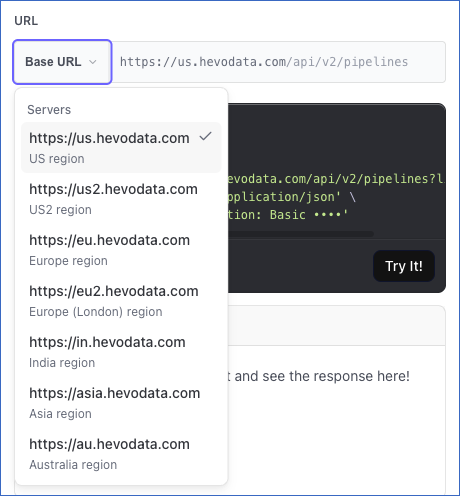
Select your Hevo account region from the Base URL drop-down.
-
If not already authenticated, enter the following details in the CREDENTIALS section:
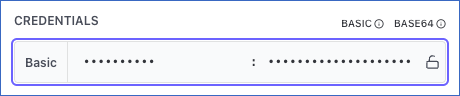
- username: The Access Key that you generated for your Hevo account region.
- password: The Secret Key that you generated for your Hevo account region.
Read Generating your API Credentials for the steps to generate them.
-
In the Path Params section, specify the
pipeline_id. This is the unique identifier of the Pipeline you want to change.
-
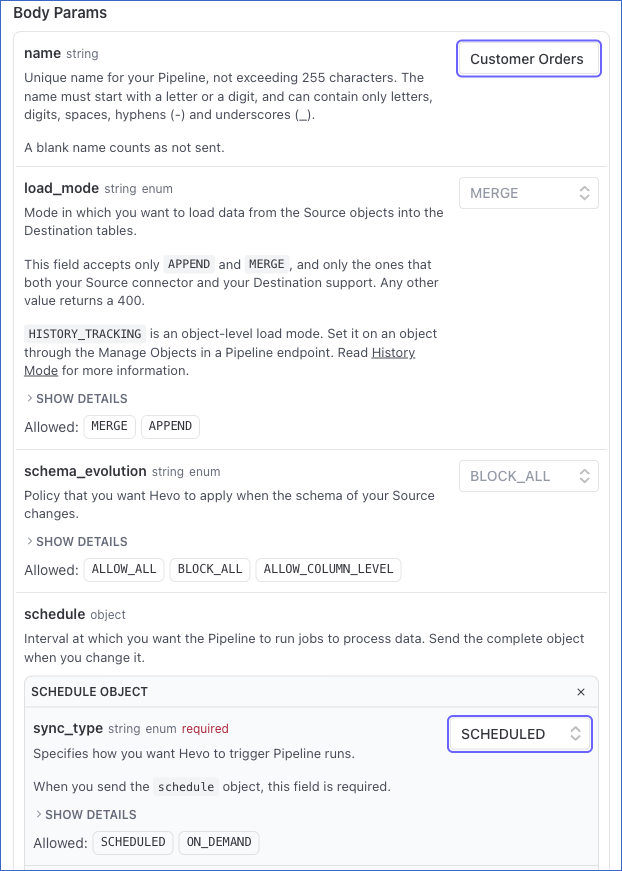
In the Body Params section, specify the new values for the fields you want to change. Read Editable Fields for the fields you can change.
-
The API request is simultaneously generated in the cURL Request block to the right. Click Try It! to make the API request and change your Pipeline.
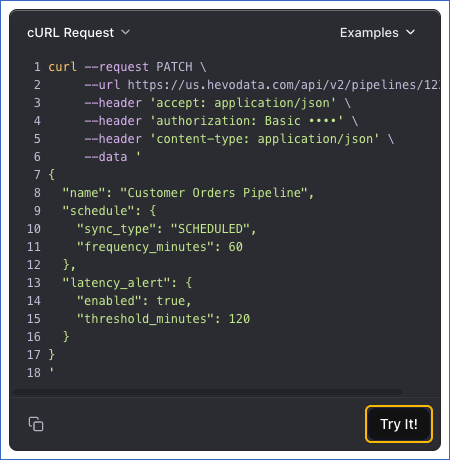
Once the change is accepted, you will get a response code 202 in the response block with the updated details of your Pipeline. The code field in the response body returns Accepted.
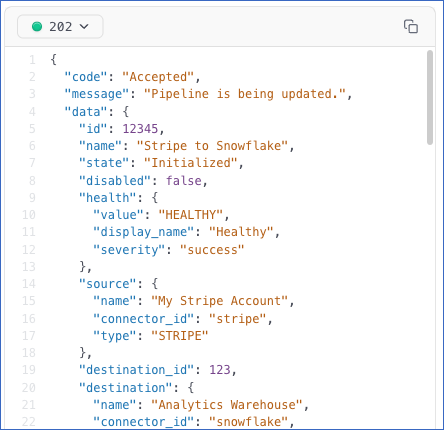
The following example renames a Pipeline, changes its schedule, and turns on its latency alert:
{
  "name": "Customer Orders Pipeline",
  "schedule": { "sync_type": "SCHEDULED", "frequency_minutes": 60 },
  "latency_alert": { "enabled": true, "threshold_minutes": 120 }
}
The schedule and latency_alert fields each contain more than one value. To change any value inside one of them, send all of its values together, including the ones that stay the same. For example, schedule contains sync_type and frequency_minutes, so a request that changes only the frequency sends both of them. The failure_handling_policy field is different. You can send object_failure_level on its own, such as "failure_handling_policy": {"object_failure_level": "PARTIAL"}.
Note:
- If your client or proxy cannot send a
PATCHrequest, send the same request body as a POST request to the Modify Pipeline Configuration (POST) endpoint. - In version 1, call the Modify Pipeline Configuration endpoint instead. The steps are the same, but version 1 accepts
name,schedule,load_mode,schema_evolution, andlatency_alertonly. To changefailure_handling_policy.object_failure_level, you must use version 2.
Applying a Change
The Pipeline has to be in the Initialized or Disabled state for a change to be accepted. A Pipeline in the Initializing, Enabling, Disabling or Restarting state is moving from one state to another, and returns a 409. A Pipeline that is being deleted returns a 404 instead, and a Pipeline in the Failed state returns a 400.
A Pipeline with another edit in progress, in the Hevo UI or through the API, also returns a 409, until those changes are submitted or discarded.
A Pipeline in the Initialized state moves to Initializing while the change is applied, even when you change only the name, and returns to Initialized when it is done. As a result, another change request sent before the Pipeline returns to Initialized returns a 409. A Disabled Pipeline takes the new configuration details and stays Disabled.
Send a request to the Get Details of a Pipeline endpoint at regular intervals until the state stops changing. Read Understanding Pipeline States for more information.